

Free software for the trades
Create a Budget, enter Actuals, and view the Report on one page. Type in each month as it closes, and see budget vs. actual by line for any month and the year to date.
Building your budget is free. No credit card. No coaching contract.
Why it works
Shooting without a target is not much of a sport. You cannot tell a good shot from a bad one. The budget is your target: a meaningful number for every line of the business. Keep score by entering what really happened each month. Then adjust your aim until you hit it.
A budget you never compare to real numbers is a guess. Here the plan and the actuals sit on the same lines, so you see the gap every month.
Dollars hide problems. Marketing at 9 percent of revenue is a number you can act on. The grid shows both, and flags the categories outside a healthy range.
Put your general ledger (GL) account on every line. When you enter actuals you know exactly which account to pull, and your bookkeeper reads the same page you do.
Step 1. Budget. Free.
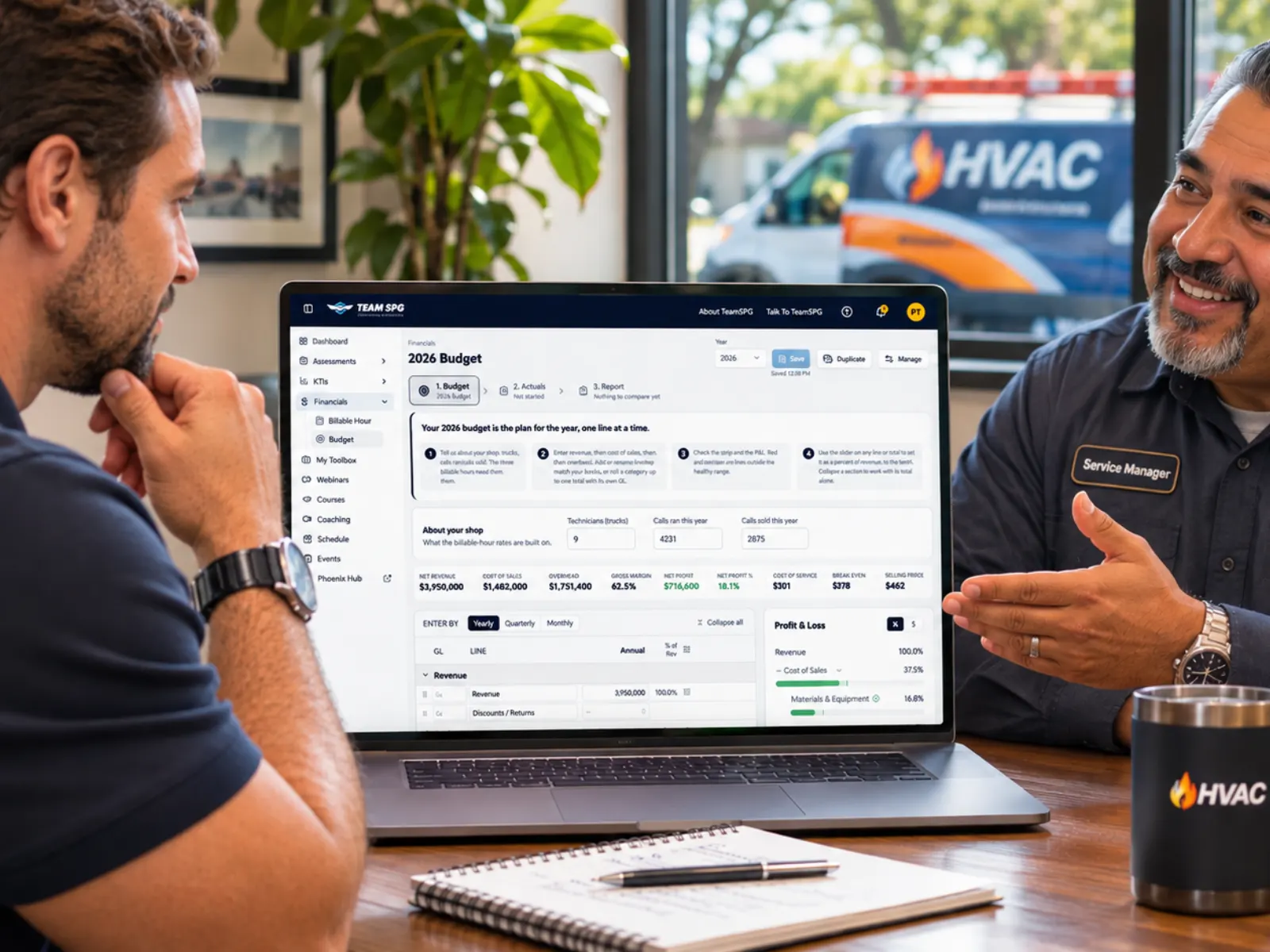
The strip across the top shows net revenue, each section as a percent of revenue, net profit, and your three billable hours. The profit and loss (P&L) on the right shows each category against a healthy range, with red and amber bars on the ones outside it. Changes save on their own a second after you stop typing.
Step 2. Actuals. SOS Pro.
The same lines, one month at a time. The page opens on the next month to fill in, with a Goal column beside it showing that month's number from your budget. Type what the month really came to. Each cell saves as soon as you leave it.
Switch to All months to see the whole year across, with year to date (YTD) totals on the right. Only months that have already started are open, so nobody types July in March.
Step 3. Report. SOS Pro.
Pick a month. The left half of the table is that month: budget, actual, the difference, and the percent of revenue each one came to. The right half is the year to date through that month.
Green means on plan or better: revenue over, costs under. Red means behind. You stop reading a table and start looking for red. The P&L on the right shows your actual year to date in the same shape you used to build the plan. Print it and take it to the meeting.
More than one plan
SOS Pro members keep as many budgets for a year as they want. Switch budgets and your actuals compare against it, matched by GL code.
Manage lists every version of the year. Rename it, move it to a different year, make it the default, clear every figure to start over without rebuilding it.
Getting started
Open Financials, then Budget. Start blank or copy last year. The standard line set is already there, so you are typing numbers, not building a spreadsheet.
Type revenue first. Then use Adjust to set each cost as a percent of revenue, so the plan hangs together. It saves on its own as you go.
When a month closes, open Actuals and type what it really came to. The Report updates the same minute.
You can type in any cell, press Enter or Tab to move, or paste a block copied from a spreadsheet and it fills to the right and down.Read the setup guide in the Help Center.
Before you build the plan
The Billable Hour worksheet takes your revenue, costs, headcount, and calls and shows what one billable hour has to earn to hit your profit goal. Change any figure and the rate moves with it. When you have the numbers you want, come back here and enter the plan.
The worksheet shows the rate. The budget is how you get there. Both are free.
Building your budget is free. So are KPIs, goals, the TV Leaderboard, assessments, starter courses, and a login for every person on your team. Actuals, the Report, and budget versions are part of SOS Pro.
Building and saving the budget is part of the free level of SOS, along with technician and CSR KPIs, goals, the TV Leaderboard, assessments, and starter courses. Entering monthly actuals, the budget vs. actual Report, and keeping more than one budget per year are part of SOS Pro, which has a free trial. On the free level you can open both steps to see how they work.
Start by year to get the shape of the plan quickly. Then switch to quarter or month for the lines that really move with the season, like marketing or seasonal help. The toggle only changes which columns you edit. You never lose numbers by switching.
GL stands for general ledger, the list of accounts in your accounting software. The column is a note to yourself. Put the account number or name on each line so that when you enter actuals you know exactly which account to pull. Nothing is imported from it.
Yes, with SOS Pro. Duplicate copies the open budget under a new name. When a year has more than one, a version picker appears next to the year. The one marked default is the one Actuals and the Report compare against. You can rename, move to a different year, make default, clear, or delete any version from Manage.
No. You type the budget and the monthly actuals in, or paste a block copied from a spreadsheet and it fills to the right and down. There is nothing to install and nothing to integrate.
From your own numbers. The strip above the budget grid shows your three billable hours, built from the revenue, costs, technicians, and calls you entered. To work the rate out before you build the plan, use the Billable Hour worksheet. It is free, and it is part of the same Financials menu.

Free software for the trades
Create your free account, open Budget, and type in revenue. By the end of the afternoon you will know what every cost line has to be for the year to work.
Create your free accountBuilding your budget is free. No credit card. No coaching contract.