
Team SPG Help
How Do Coaching Sessions Work in Team SPG?
Team SPG connects your team with expert coaches for one-on-one and group sessions. Book time from the Schedule page — your assigned Strategic Partner is highlighted at the top — and review session history, notes, and homework on the Coaching page. Your session allowance and current usage appear in the bar at the top of Schedule.
Overview
The coaching module has two pages:
- Schedule — Browse coaches and book new sessions
- Coaching — View your coaching history and session notes
Schedule Page
The Schedule page shows:
- Session usage bar — How many sessions you've used this month (e.g., "2 of 10")
- Your Strategic Partner — Your assigned coach, highlighted at the top
- All Coaches — The full coaching team with bios and contact info
- Schedule buttons — Click to book time with any coach
- Refresh button (circular arrow icon) — Reload coach data
Coaching Page
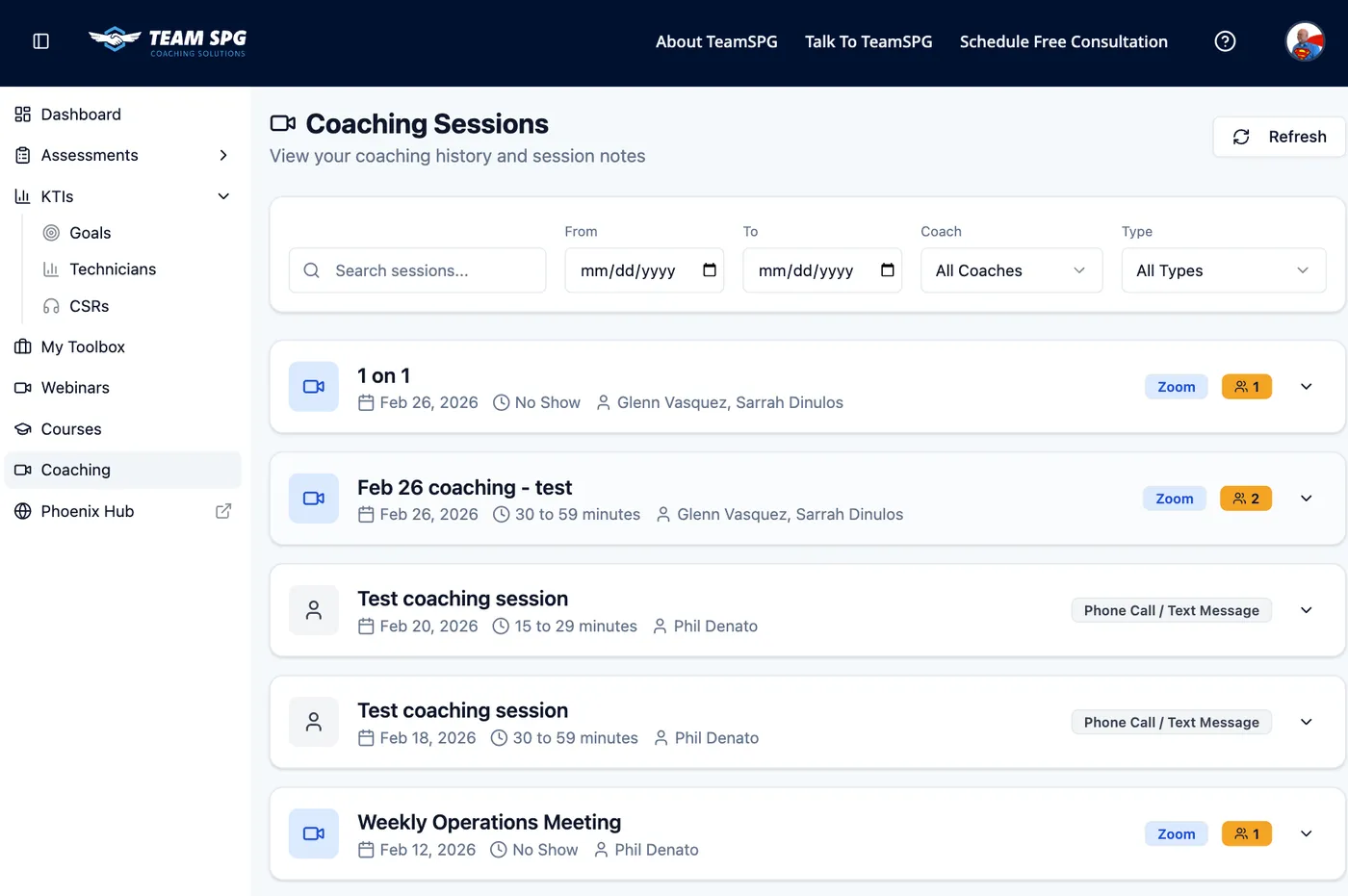
The Coaching page shows your session history with:
- Search — Find sessions by keyword
- Filters — Filter by date range, coach, or session type
- Session cards — Each session shows date, duration, coach, and type
- Refresh button (circular arrow icon) — Reload session data
Types of Coaching
One-on-One Coaching
Private sessions between a coach and a single team member:
- Personalized feedback
- Skill development
- Performance improvement
- Career guidance
Group Coaching
Sessions with multiple team members:
- Team workshops
- Best practice sharing
- Trade-specific training
- Leadership development
Technician Coaching
Focused on technical and sales skills:
- Diagnostic techniques
- Sales presentation
- Customer communication
- Upselling strategies
CSR Coaching
For customer service representatives:
- Phone skills
- Booking optimization
- Call handling
- Customer retention
Scheduling Sessions
- Go to Schedule in the sidebar
- Review your session usage at the top of the page (e.g., "2 of 10 sessions used this month")
- Choose a coach — your assigned Strategic Partner is highlighted at the top, with all other coaches listed below
- Click Schedule with [Coach Name]
- A scheduling window opens — select a session type (e.g., 15 Minute Zoom, 30 Minute Phone Call, 30 Minute Zoom)
- Pick an available date and time from the calendar
- Fill in your details and confirm the booking
Your assigned Strategic Partner appears at the top of the page with a gold border. All other available coaches are listed below under All Coaches. Each coach card shows their name, title, bio, and contact information.
After clicking Schedule with [Coach Name], a scheduling window opens with the available session types for that coach. Choose the session type that fits your needs, then pick an open time slot from the calendar.
Session Details
Sessions are displayed as expandable cards on the Coaching page.
Collapsed View (Default)
Each session card shows:
- Session title — The reason for meeting or communication type
- Date — When the session took place (e.g., "Apr 10, 2026")
- Duration — Meeting length
- Coach name — Who led the session
- Type badge — Communication type (Zoom, Phone Call, Onsite, etc.)
- Attendee count — Number of participants
- Chevron icon — Click to expand or collapse details
Expanded View
Click a session card to see full details:
| Field | Description |
|---|---|
| Attendees | List of all participants |
| Meeting Notes | Notes from the session |
| Updates | Any status updates |
| Coach Follow-up | Action items your coach will handle |
| Your Homework | Action items assigned to you |
| Your Rating | Rate the session (if you were an attendee) |
| Next Meeting | Status of the next scheduled meeting |
Session Type Badges
Sessions are color-coded by type:
- Blue — Zoom sessions
- Green — Onsite discussions and happy calls
- Purple — Technician training and SOS training
- Gray — Phone calls, email, and other types
Before Your Session
To get the most from coaching:
- Review KTIs - Know your current metrics
- Identify Goals - What do you want to improve?
- Prepare Questions - Come ready to learn
- Check Tech - Test your video/audio connection
During the Session
- Be on time (join 5 minutes early)
- Have your dashboard open for reference
- Take notes
- Be honest about challenges
- Ask for specific action items
After the Session
- Review Notes - Session notes are saved automatically
- Set Reminders - For action items
- Practice - Apply what you learned
- Track Progress - Monitor KTI improvements
Coaching Packages
Your monthly session allowance depends on your membership level. Your current usage and allowance are always shown in the bar at the top of the Schedule page (e.g., "2 of 10 sessions used this month"). To compare membership levels, visit teamspg.com.
Cancellation Policy
- Cancel 24+ hours ahead: No penalty
- Cancel within 24 hours: Session is forfeited
- No-shows: Session is forfeited
To cancel:
- Go to the session detail
- Click Cancel Session
- Confirm cancellation
Meet Our Coaches
Team SPG coaches are industry experts with years of experience in home services:
- Technical training specialists
- Sales and communication experts
- Leadership development coaches
- Trade-specific mentors
Activity Tracking
Coaching attendance is tracked in Team Activity:
- Session completions
- Topics covered
- Action items assigned
Frequently Asked Questions
How many coaching sessions do I get?
It depends on your membership level. Your current usage and allowance are shown in the bar at the top of the Schedule page.
Do I have to book with my assigned coach?
No. Your Strategic Partner is highlighted at the top for convenience, but you can schedule with any coach listed under All Coaches.
What happens if I miss a session?
Cancel 24 or more hours ahead and there's no penalty. Cancellations inside 24 hours and no-shows forfeit the session.
Related Topics
- KTIs - Metrics to discuss in coaching
- Courses - Supplement coaching with courses
- Team Activity - Track coaching attendance