
Team SPG Help
How Do Courses Work in Team SPG?
The Courses page is your team's training library — video lessons and quizzes built for home service technicians, CSRs, managers, and owners. Start a course to work through lessons in order, pass each quiz to advance, and earn a certificate at completion. Managers can assign courses with due dates and track progress in Team Activity.
Course Catalog
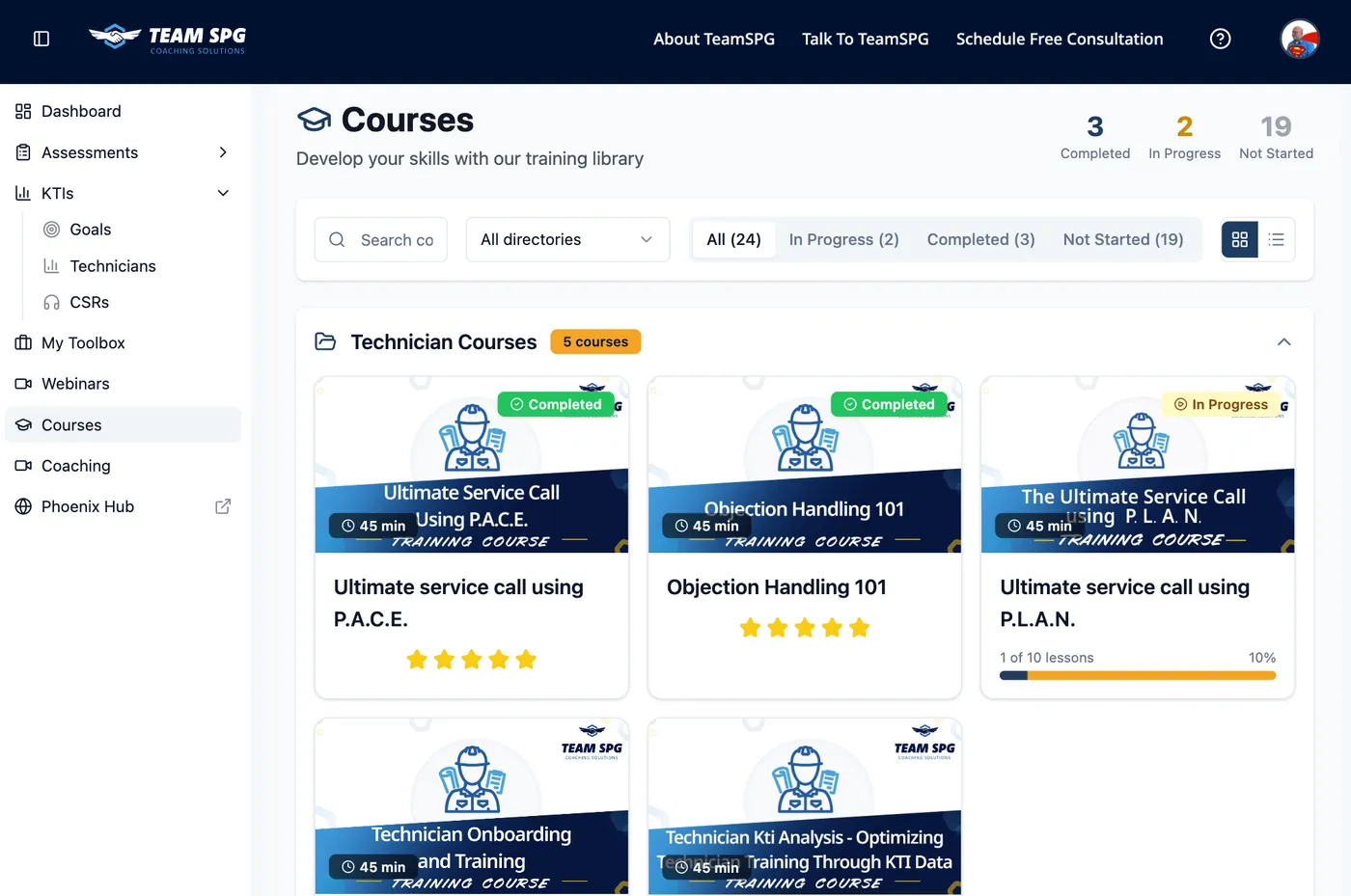
The Courses page displays your available course library.
Page Header
At the top of the page:
- Page title - "Courses" or "Course Library"
- Search bar - Type to search course titles and descriptions
- Filter tabs - Toggle between different views
Filter Tabs
Click tabs at the top to filter courses:
- All - Shows all available courses
- In Progress - Shows courses you've started but not completed
- Completed - Shows courses you've finished
- Not Started - Shows courses you haven't accessed yet
The active tab is highlighted or underlined.
Search Functionality
- Click in the search bar at the top
- Type keywords (course name, topic, etc.)
- Results filter as you type
- Clear search to see all courses again
Course Cards
Each course displays as a card showing:
- Course image/thumbnail - Visual representation
- Course title - Name of the course
- Description - Brief overview of content
- Progress indicator (if started):
- Progress bar showing completion percentage
- "X% Complete" text
- Status badge:
- "In Progress" - Course is being taken
- "Completed" - Course is finished
- "Not Started" - Course hasn't been accessed
- Estimated time - How long the course takes
- Lesson count - Number of lessons (e.g., "12 lessons")
- Trade tags - If applicable (HVAC, Plumbing, Electrical)
- Role tags - If applicable (Technician, CSR, Manager, Owner)
Finding Courses
- Go to Courses in the sidebar
- Use filter tabs to narrow results (All, In Progress, Completed, Not Started)
- Use search bar to find specific courses
- Browse course cards
- Click a course card to view details
- Start learning or assign to team
Course Detail Page
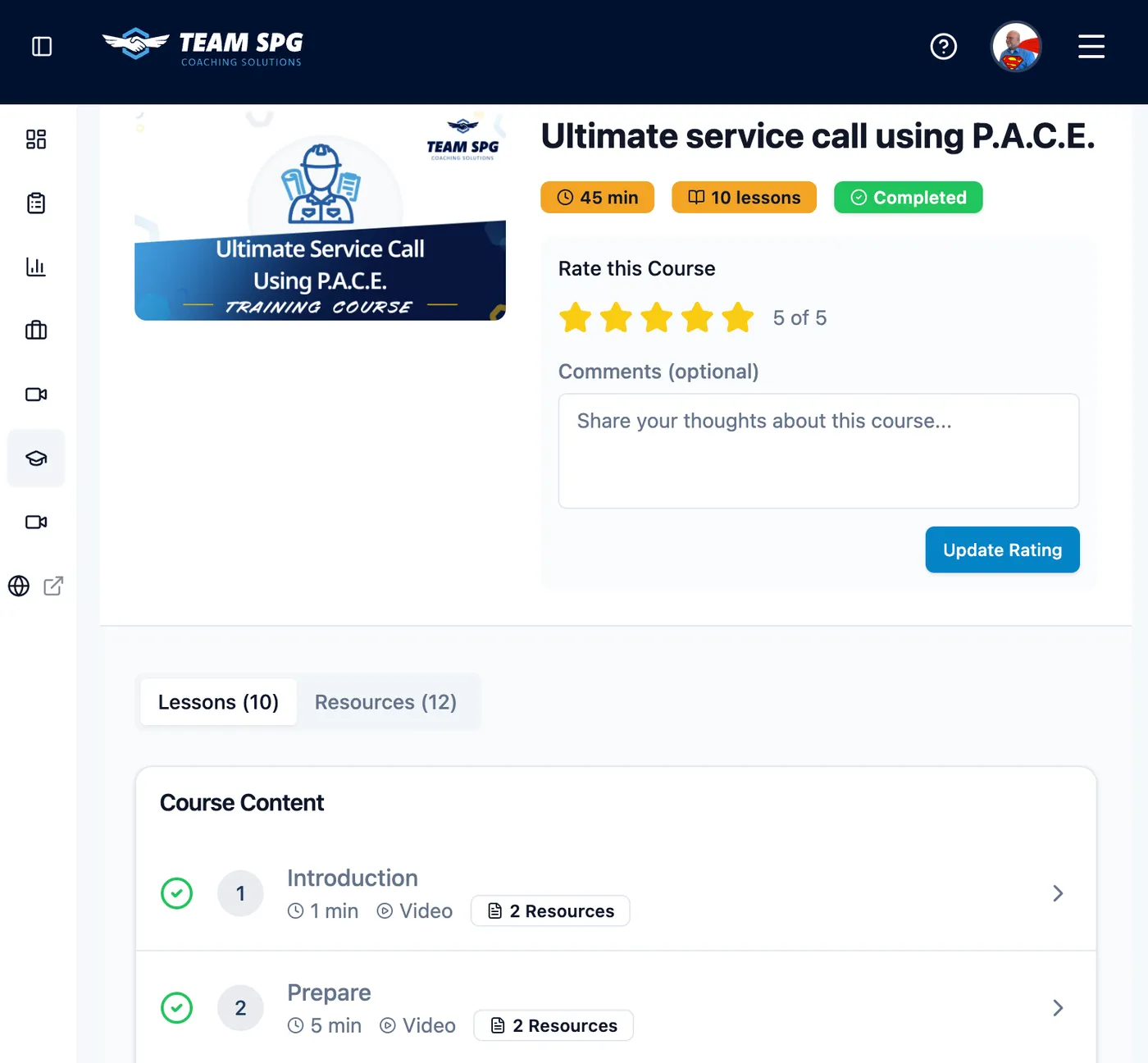
Click any course card to view the course detail page.
Course Header
At the top of the detail page:
- Course title - Large heading
- Course description - What you'll learn
- Progress bar - Overall completion (if started)
- Start Course button - Begin or continue the course
- Assign Course button (for managers/owners) - Assign to team members
Course Structure
The detail page shows tabs or sections:
| Component | Description |
|---|---|
| Overview | Course introduction, learning objectives, what you'll learn |
| Lessons | List of all lessons with completion status |
| Quizzes | Knowledge checks and assessments |
| Resources | Downloadable materials, PDFs, links |
| Certificate | Completion recognition (if applicable) |
Lesson List
The Lessons section shows:
- Lesson number - Order in the course
- Lesson title - Name of the lesson
- Completion status:
- ✓ Green checkmark = Completed
- ○ Empty circle = Not started
- ⏸ Pause icon = In progress
- Estimated time - How long the lesson takes
- Lock icon - If previous lessons must be completed first
Lessons are typically locked until previous ones are completed.
Taking a Course
Starting a Course
- Navigate to the course detail page
- Click Start Course button (or Continue Course if already started)
- The first lesson opens automatically
- Watch the intro video or read the content
- Progress through lessons in order
- Complete quizzes to advance
Lesson Viewer
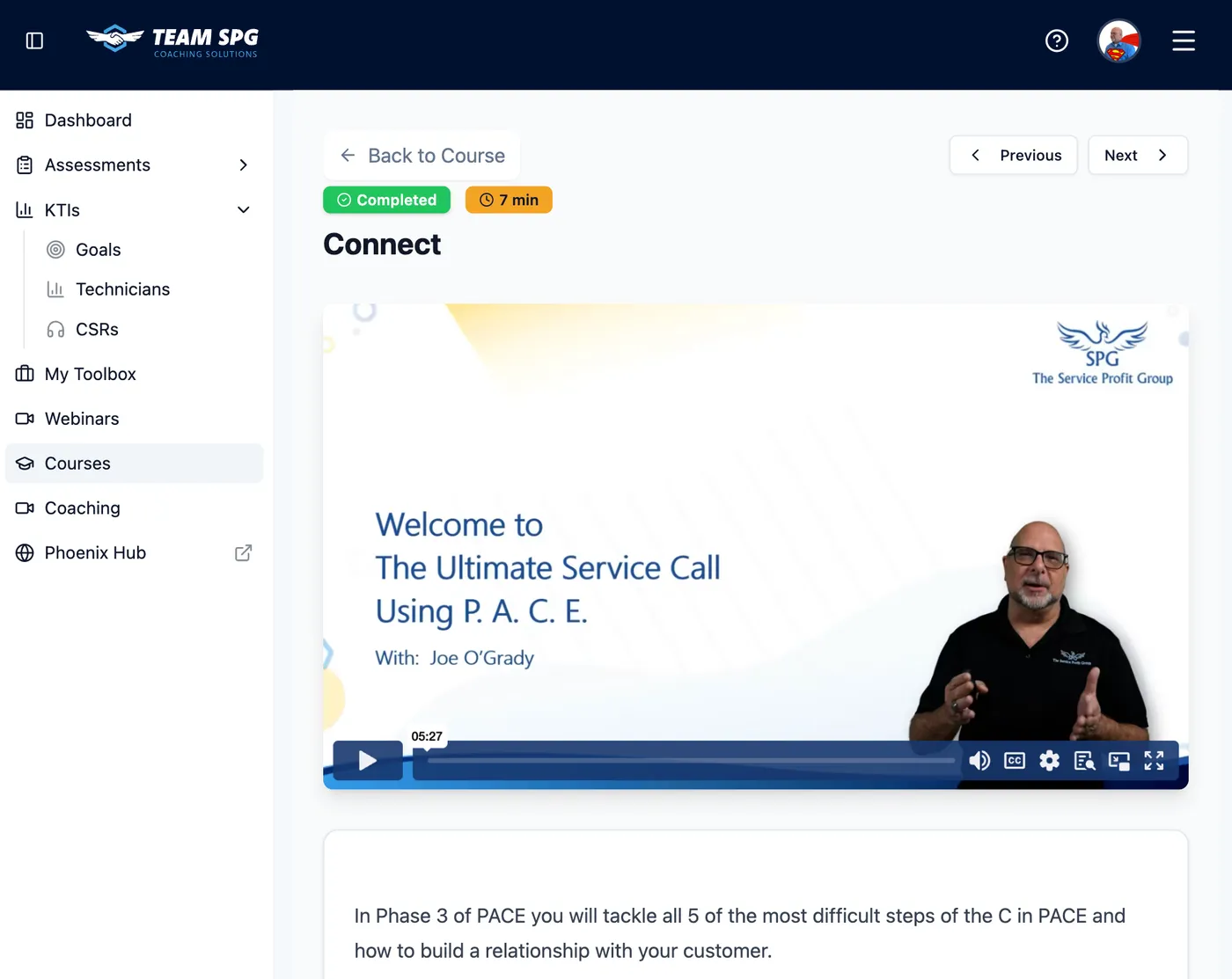
When viewing a lesson, you'll see:
Lesson Header
- Lesson title - Current lesson name
- Course breadcrumb - Link back to course overview
- Progress indicator - "Lesson X of Y"
Lesson Content
- Video player (if video lesson):
- Play/pause controls
- Volume control
- Fullscreen option
- Progress bar
- Text content (if text lesson):
- Formatted text with headings
- Images and diagrams
- Bullet points and lists
- Summary section - Key takeaways from the lesson
Navigation
- Previous Lesson button - Go back (disabled if first lesson)
- Next Lesson button - Advance to next lesson
- Complete Lesson button - Mark lesson as done
- Lesson sidebar - List of all lessons with status indicators
Progress Tracking
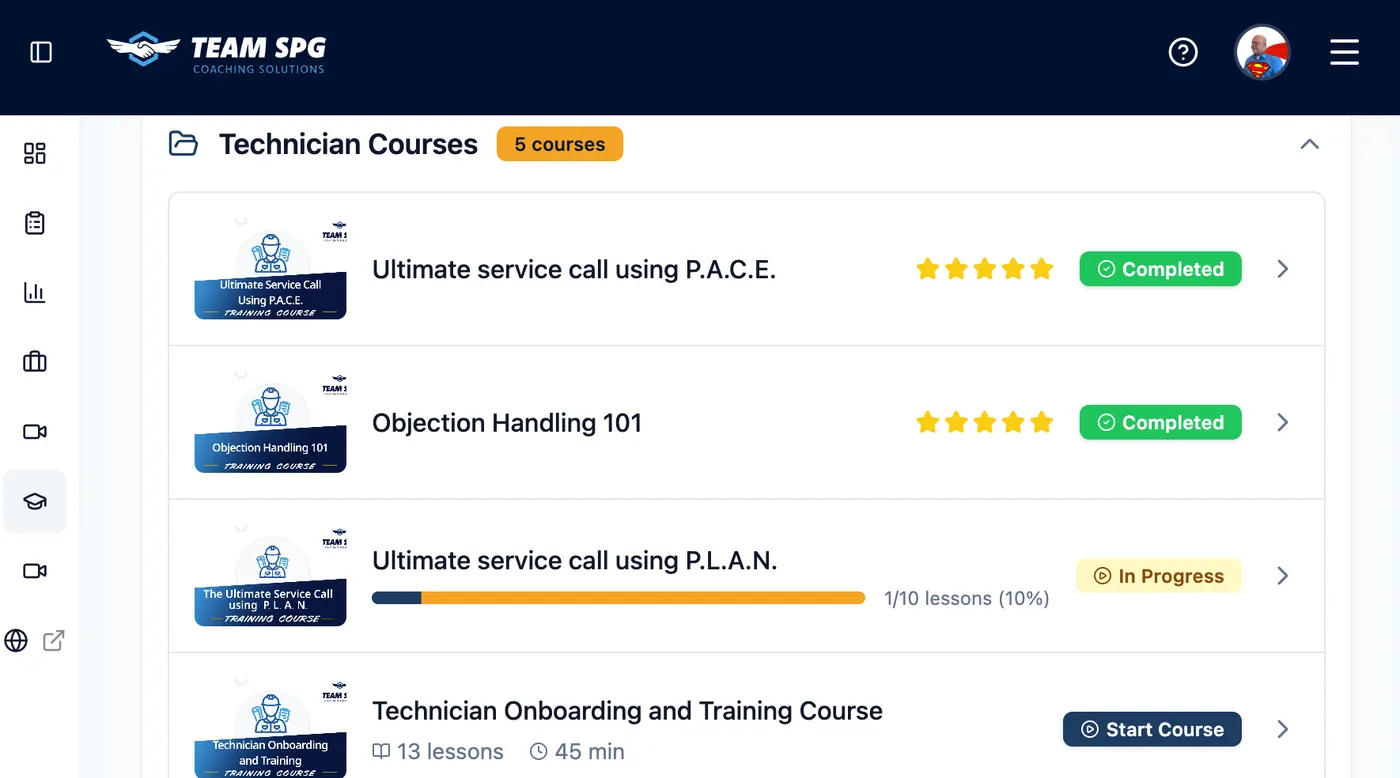
Track your progress throughout the course:
- Green checkmarks (✓) = Completed lessons
- Empty circles (○) = Not started lessons
- Progress bar - Shows overall completion percentage
- Time remaining - Estimated time to finish
- Lesson counter - "X of Y lessons completed"
Progress is saved automatically as you complete lessons.
Quizzes
How Quizzes Work
- Complete the lesson content first (lesson must be marked complete)
- Click Take Quiz button (appears after lesson completion)
- Quiz opens in a modal or new page
- Answer multiple choice questions:
- Read each question carefully
- Select your answer (radio buttons or checkboxes)
- Questions may be single-select or multi-select
- Review your answers
- Click Submit Quiz button
- Quiz is graded automatically
- Score 70% or higher to pass (or as configured by your admin)
Quiz Results
After submitting:
- Score displays - "You scored X%"
- Pass/Fail indicator:
- Green "Passed" message if 70%+
- Red "Failed" message if below 70%
- Correct answers shown - See which questions you got right/wrong
- Review option - Go back to see correct answers
- Retake option - If you failed, see when you can retake
Retaking Quizzes
If you don't pass:
- Review the lesson material again
- Wait for the retake period (typically 24 hours, configurable)
- Click Retake Quiz button when available
- Attempt the quiz again
- Your new score replaces the previous attempt
Note: Some quizzes may have unlimited retakes, while others may have a limit. Check with your admin for specific policies.
Certificates
Upon course completion:
- All lessons completed ✓
- All quizzes passed ✓
- Certificate automatically generated
- Download or share your certificate
Certificates include:
- Your name
- Course title
- Completion date
- Unique verification code
Course Access by Membership
Your course library depends on your membership level — higher levels unlock more of the library. If a course you expect to see is missing, check your level in Settings > Subscription or ask your account owner.
For Managers: Assigning Courses
Assign to Team Members
- Go to the course detail page
- Click Assign Course
- Select team members
- Set a due date (optional)
- Click Assign
Track Team Progress
View progress in Team Activity:
- Who started which courses
- Completion percentages
- Quiz scores
- Certificate achievements
Course Categories
Technical Courses
- Diagnostic procedures
- Equipment installation
- Repair techniques
- Code compliance
Sales Courses
- Opportunity presentation
- Objection handling
- Closing techniques
- Customer psychology
CSR Courses
- Phone skills
- Booking optimization
- Customer service excellence
- Call center best practices
Leadership Courses
- Team management
- Performance coaching
- Business development
- Strategic planning
Mobile Learning
Access courses on any device:
- Desktop computer
- Tablet
- Smartphone
Progress syncs across all devices automatically.
Offline Access
For premium members:
- Download lessons for offline viewing
- Sync when you're back online
- Perfect for on-the-job learning
Frequently Asked Questions
Do I have to complete lessons in order?
Usually yes — lessons unlock as you complete the previous one, and each quiz unlocks after its lesson is marked complete.
What score do I need to pass a quiz?
70% by default (your admin may configure it differently). If you don't pass, review the lesson and retake after the retake period — typically 24 hours.
How do I get my certificate?
Complete every lesson and pass every quiz. The certificate generates automatically with your name, the course title, completion date, and a unique verification code.
Which courses do I have access to?
Your library depends on your membership level and any role or trade targeting on the course. If something you expect is missing, check with your account owner.
Related Topics
- Team Activity - Track learning progress
- Coaching - Supplement with coaching
- Team Accounts - Manage who can access courses