
Team SPG Help
How Do I Track KTIs in Team SPG?
Key Training Indicators (KTIs) are the core numbers Team SPG tracks for every technician and CSR — revenue, average ticket, conversion rate, maintenance plan rate, and callback rate. Enter data manually, upload a CSV, or import from your field service software, and every metric is color-coded green or red against the goals you set.
What Are KTIs?
KTIs are measurable values that demonstrate how effectively your team is performing. Unlike generic KPIs, KTIs are specifically designed for the home service industry.
Technician KTIs
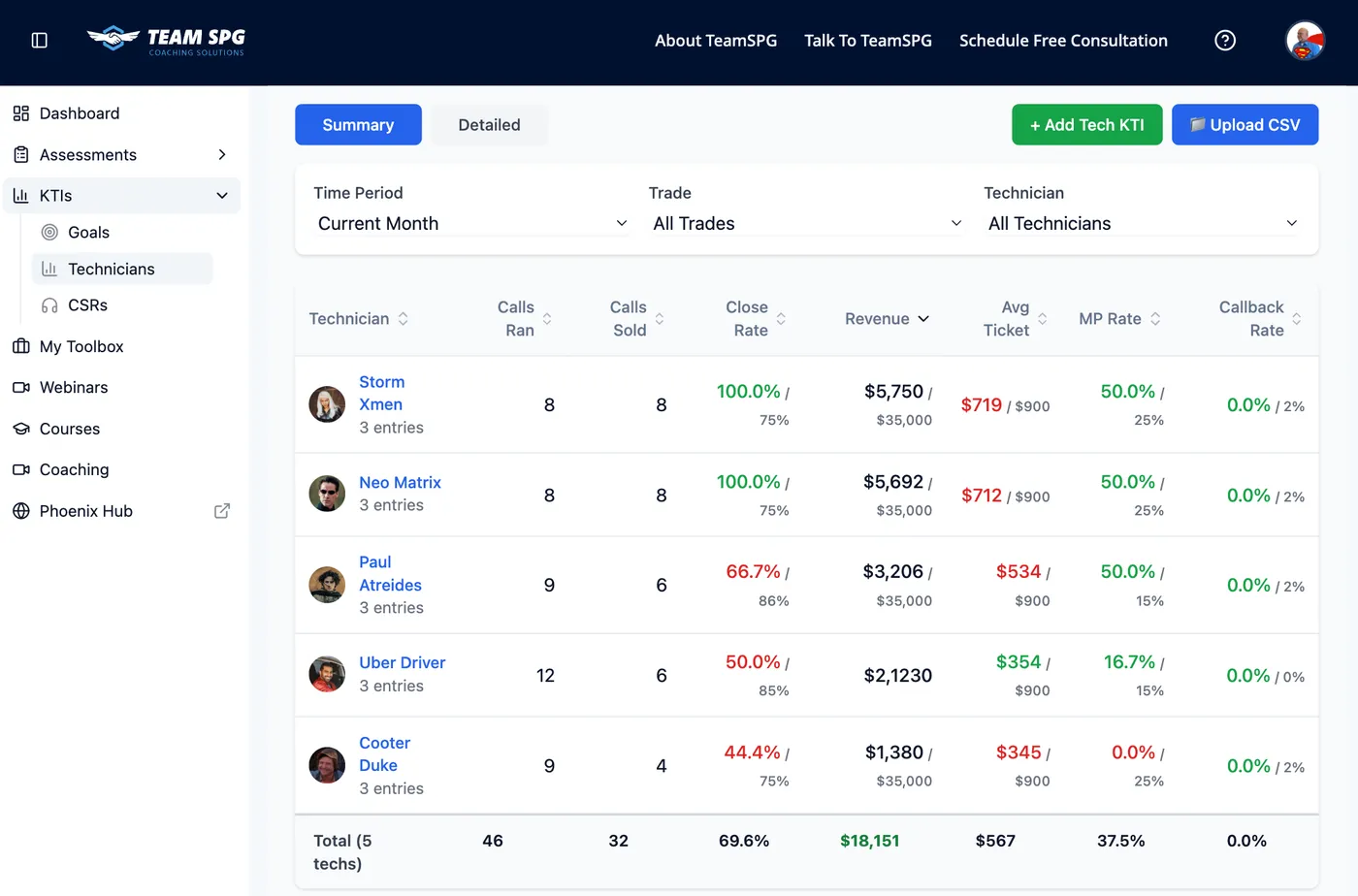
Core Metrics
| Metric | Description |
|---|---|
| Revenue | Total sales for the period |
| Average Ticket | Average value per completed job |
| Conversion Rate | Opportunities converted to sales |
| MP Rate | Maintenance plan attachment rate |
| Callback Rate | Service callbacks (lower is better) |
The right goal range for each metric varies by trade and market — set yours under KTIs > Goals (see Goals Management below), and lean on your Team SPG coach for targets that fit your business.
Understanding Each Metric
Revenue
Total revenue generated by the technician. This is the primary indicator of overall performance and directly impacts company profitability.
Average Ticket
The average dollar amount per completed job. Higher tickets indicate effective upselling, comprehensive diagnostics, and proper solution presentation.
Conversion Rate
Percentage of service calls that result in a sale. Calculated as:
Conversion Rate = (Sold Opportunities / Total Opportunities) × 100
Maintenance Plan (MP) Rate
Percentage of jobs where a maintenance plan is sold. Recurring revenue from MPs is crucial for business stability.
Callback Rate
Percentage of jobs that require a return visit. Lower is better—high callback rates indicate quality issues.
CSR KTIs
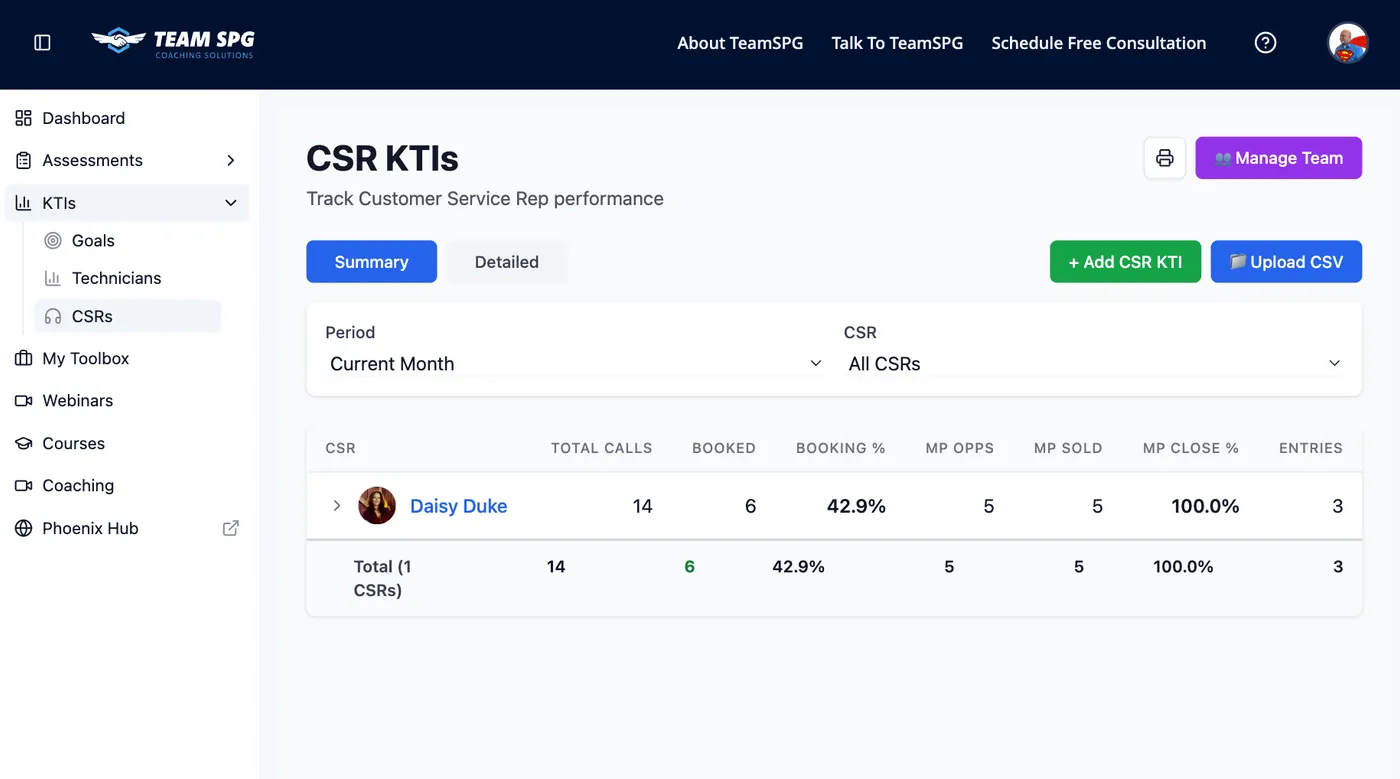
CSRs (Customer Service Representatives) have their own metrics:
| Metric | Description |
|---|---|
| Calls Handled | Total calls taken |
| Booking Rate | Calls converted to appointments |
| Average Call Time | Efficiency metric |
| Customer Satisfaction | Survey scores |
Viewing KTI Data
Page Header
At the top of the KTIs page, you'll see:
- Page title - "Key Training Indicators" or "KTIs"
- Action buttons on the right:
- Manage Team - Opens team management
- Add KTI - Manually enter KTI data
- Template - Download CSV template
- Upload CSV - Import KTI data from file
View Toggle
Toggle between two views using buttons at the top:
- Summary - Overview of all technicians
- Detailed - Individual technician breakdown
Click the toggle to switch views.
Date Range Selection
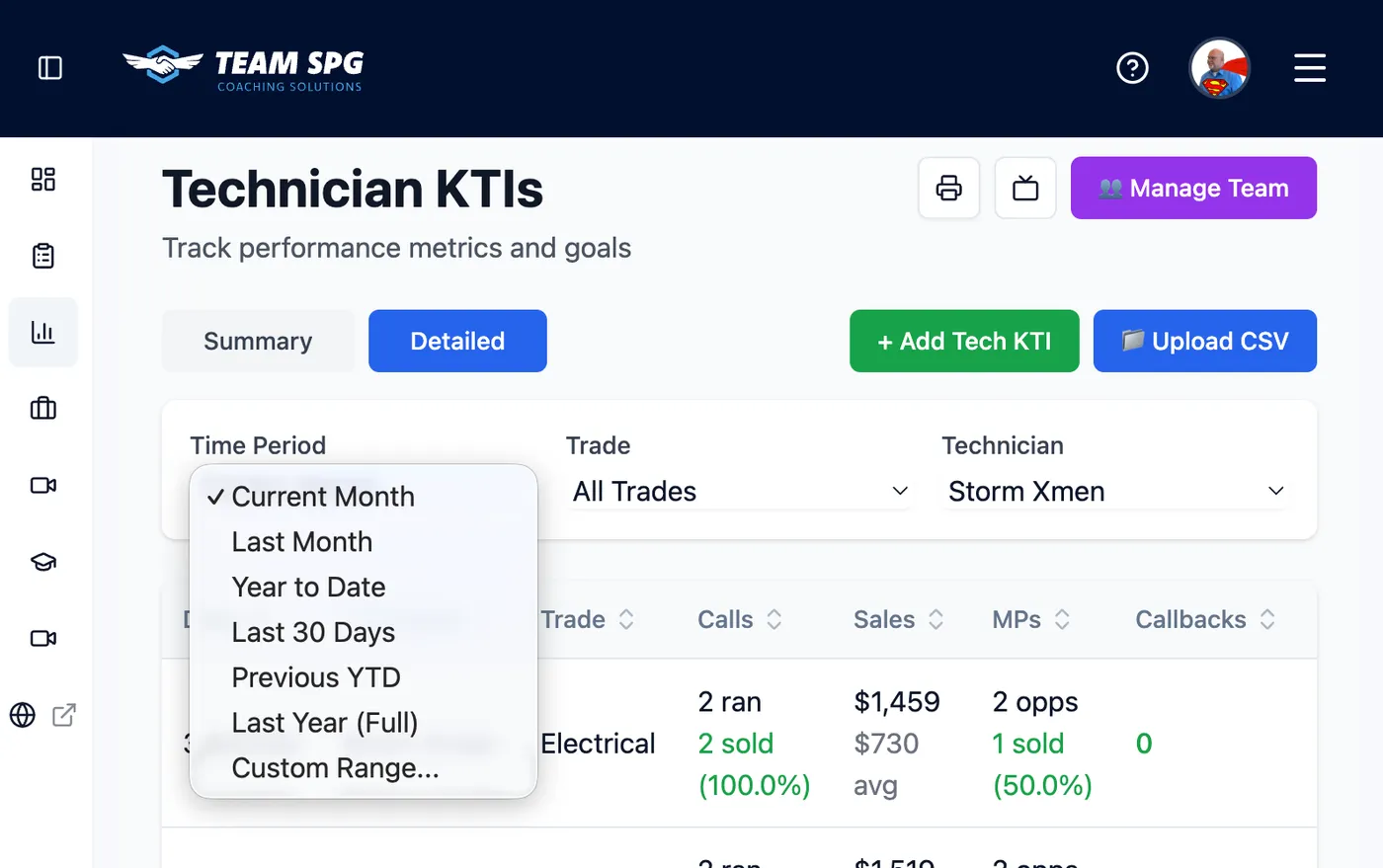
Select different time periods using the dropdown:
- Month to Date - Current month from 1st to today
- Last Month - Previous full month
- Year to Date - January 1st to today
- Last 30 Days - Rolling 30-day period
- Custom Range - Select specific start and end dates
To select a custom range:
- Click the date dropdown
- Select "Custom Range"
- Choose start date
- Choose end date
- Data updates automatically
Summary View
The Summary view shows:
- Trade filter dropdown - Filter by trade (All, Electrical, HVAC, Plumbing, etc.)
- Technician table with columns:
- Technician name
- Calls Ran
- Calls Sold
- Close Rate (with goal comparison)
- Revenue
- Avg Ticket (with goal comparison)
- MP Close
- Callback Rate
Detailed View
The Detailed view shows:
- Trade filter dropdown - Same as Summary
- Technician filter dropdown - Filter to specific technician
- Expandable technician cards - One card per technician
Technician Cards
Each card displays:
- Technician name at the top
- Expand/Collapse chevron (^ or v) - Click to show/hide details
- Key metrics visible when collapsed:
- Calls Ran
- Calls Sold
- Close Rate
- Revenue
- Avg Ticket
- MP Close
- Callback Rate
When expanded, the card shows:
- All metrics with inline editing capability
- Edit button - Click to enable editing
- Save button - Appears when editing
- Cancel button - Appears when editing
- History button - View historical data
Inline Editing
To edit a technician's KTI data:
- Expand the technician card
- Click Edit button
- Fields become editable (text inputs appear)
- Enter new values
- Click Save to save changes
- Click Cancel to discard changes
Sorting and Filtering
Column Sorting
- Click any column header to sort by that metric
- Click again to reverse sort order
- Sort indicator (arrow) shows current sort direction
Trade Filter
- Click the trade dropdown
- Select a trade (or "All")
- Table/cards update to show only that trade
Technician Filter (Detailed View Only)
- Click the technician dropdown
- Type to search for a name
- Select a technician
- View updates to show only that technician
Color Coding
Metrics are color-coded based on goal performance:
- Green text = Meeting or exceeding goal
- Red text = Below goal
- Callback Rate is inverted (green = at or below 2%, red = above 2%)
This helps you quickly identify:
- Top performers (mostly green)
- Technicians needing support (mostly red)
- Specific metrics that need attention
Goals Management
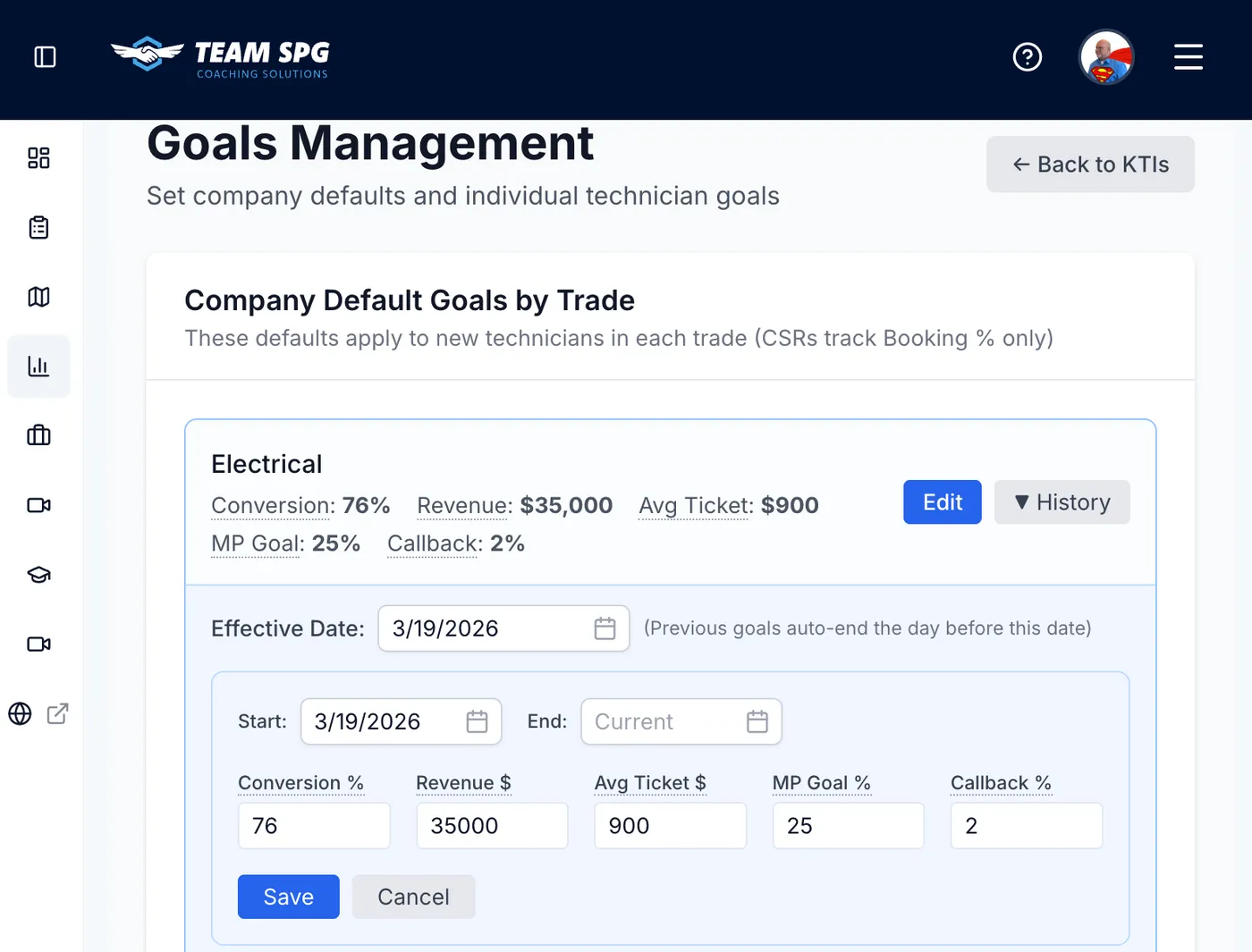
Goals provide performance benchmarks for your technicians and CSRs. Access goals from KTIs > Goals in the sidebar.
Company Default Goals by Trade
Company defaults set the baseline targets for each trade. You'll only see trades that have technicians assigned to them.
Technician Goals
Each trade (e.g. Electrical, HVAC, Plumbing) has these default targets:
| Metric | Description |
|---|---|
| Conversion Rate (%) | Opportunities converted to sales |
| Revenue ($) | Target revenue for the period |
| Average Ticket ($) | Target average job value |
| MP Goal (%) | Maintenance plan attachment rate |
| Callback Rate (%) | Maximum acceptable callback percentage |
To set or update technician defaults:
- Go to KTIs > Goals
- Find the trade under "Company Default Goals by Trade"
- Click Edit
- Enter target values
- Click Save
CSR Goals
CSR goals appear separately and track different metrics:
| Metric | Description |
|---|---|
| Booking Rate (%) | Inbound calls converted to booked appointments |
| MP Close Rate (%) | Maintenance plan close percentage |
| Outbound Booking (%) | Outbound call booking rate |
| Outbound MP Close (%) | Outbound MP close rate |
| Calls Goal | Target number of calls |
To set or update CSR defaults:
- Go to KTIs > Goals
- Find the CSR section
- Click Edit
- Enter target values
- Click Save
How Defaults Work
- New technicians and CSRs automatically use company defaults for their trade/role
- Individual goals override defaults when set
- Defaults appear as benchmarks on KTI dashboards (green = meeting goal, red = below goal)
Individual Goals
Override defaults for a specific team member:
- Go to KTIs > Goals
- Find the team member's card
- Click Edit
- Enter custom goal values
- Click Save
Team members with custom goals display a "Custom Goals" badge. Those using company defaults display "Using company defaults" with the values inherited from their trade.
Goal History
Click History on any goal card to see how targets have changed over time.
Using KTIs for Coaching
KTIs identify coaching opportunities:
- Low Conversion - May need sales training
- Low Average Ticket - Opportunity presentation skills
- High Callbacks - Technical skills review
- Low MP Rate - MP presentation coaching
Data Import
If you use ServiceTitan, FieldEdge, or other software:
- Export your data as CSV
- Go to Admin > Import KTIs
- Map your columns to KTI fields
- Review and import
Frequently Asked Questions
What's the difference between a KTI and a KPI?
KTIs (Key Training Indicators) are performance metrics built specifically for home service teams — revenue, average ticket, conversion rate, MP rate, and callback rate — chosen because each one points directly at a coaching or training opportunity.
How does KTI data get into Team SPG?
Three ways: manual entry (Add KTI or inline editing on technician cards), CSV upload using the downloadable template, or an export from field service software like ServiceTitan or FieldEdge.
What should my goal ranges be?
It varies by trade and market. Set company defaults per trade under KTIs > Goals — your Team SPG coach can help you pick the right targets — and override them per person when needed.
Can technicians see each other's KTIs?
Not by default. Owners can enable Team KTIs for the technician role in Settings > Dashboard Visibility.
Related Topics
- Dashboard - View aggregate KTIs
- Team Accounts - Manage technician profiles
- Settings - Company configuration and dashboard visibility
- Coaching - Schedule performance coaching