
Team SPG Help
How Do I Add and Manage Team Members in Team SPG?
Add team members from the Team Accounts page: enter their name, email, role, and trade, and Team SPG emails them an invitation to set a password. Roles control what each person sees — owners see everything, managers see their direct reports, and technicians and CSRs see only their own data.
Team Members List
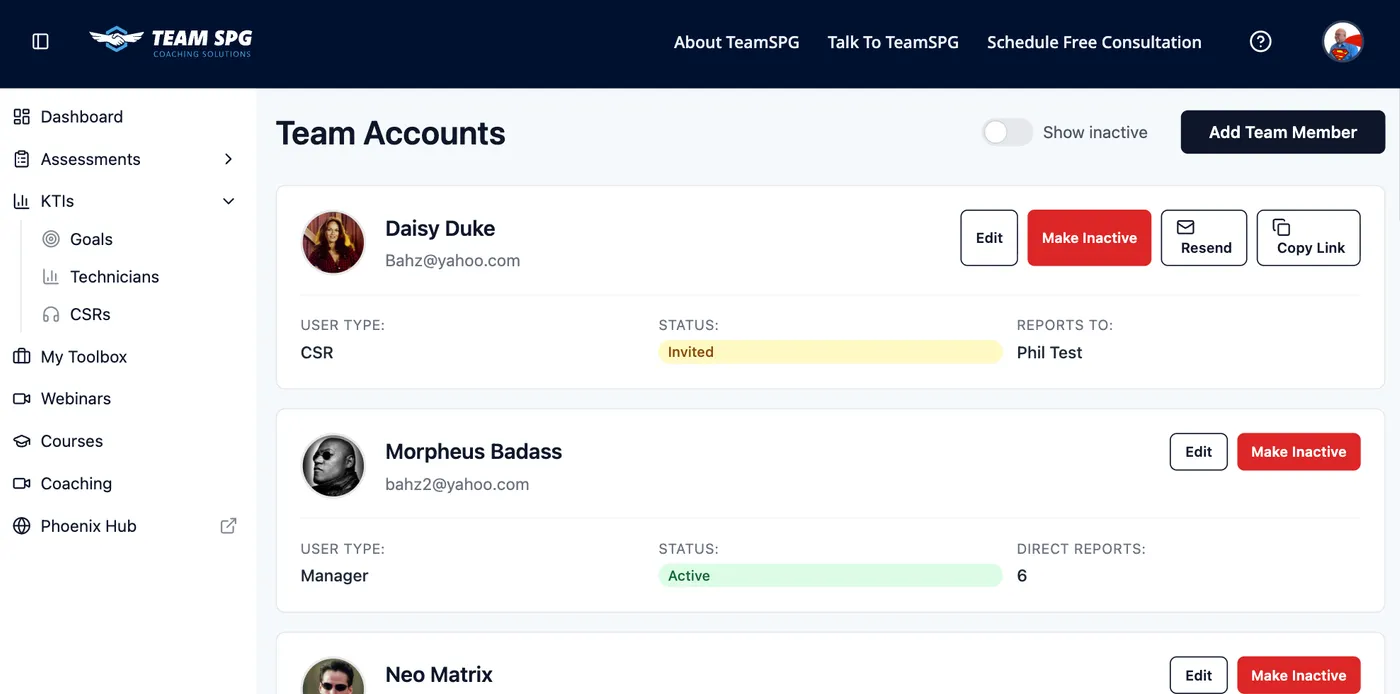
The team list shows:
- Name - Team member's full name
- Email - Login email address
- Role - Their position/access level
- Trade - Specialty (for technicians)
- Status - Active or Invited
Adding Team Members
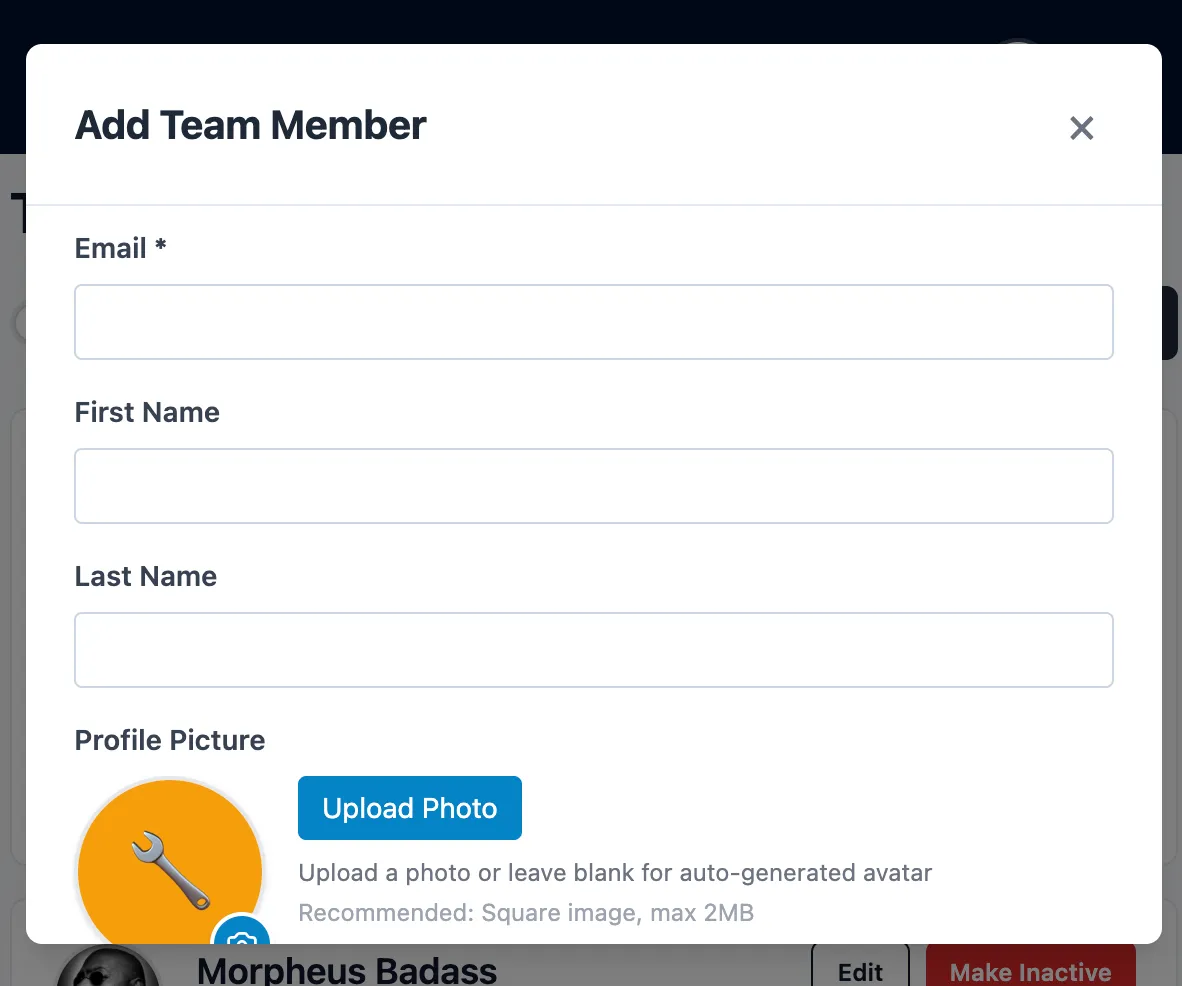
Step-by-Step
- Go to Team Accounts in the sidebar
- Click Add Team Member
- Fill in their information:
- First and last name
- Email address
- Role selection
- Trade (for technicians)
- Reports To (optional)
- Click Send Invitation
Invitation Process
When you add someone:
- They receive an email invitation
- They click the link to set their password
- They can then log in and access their dashboard
Invitations expire after 7 days. Resend if needed.
User Roles
Role Hierarchy
| Role | Description | Access Level |
|---|---|---|
| Owner | Company owner/administrator | Full access to everything |
| Co-Owner | Secondary administrator | Nearly full access |
| Leader | Department/team leader | Company-wide visibility |
| Manager | Team manager | Direct reports + own data |
| Technician | Service technician | Own KTIs and courses |
| CSR | Customer service rep | Own metrics and courses |
Role Capabilities
Owner/Co-Owner
- All settings and configuration
- All team member management
- All company data
- Billing and subscription
Leader
- View all team activity (if enabled)
- Access coaching administration
- View company-wide KTIs
- Limited settings access
Manager
- View direct reports' data
- Assign courses to team
- Schedule coaching for reports
- Limited administrative functions
Technician/CSR
- View own performance data
- Access assigned courses
- Attend coaching sessions
- Update own profile
Editing Team Members
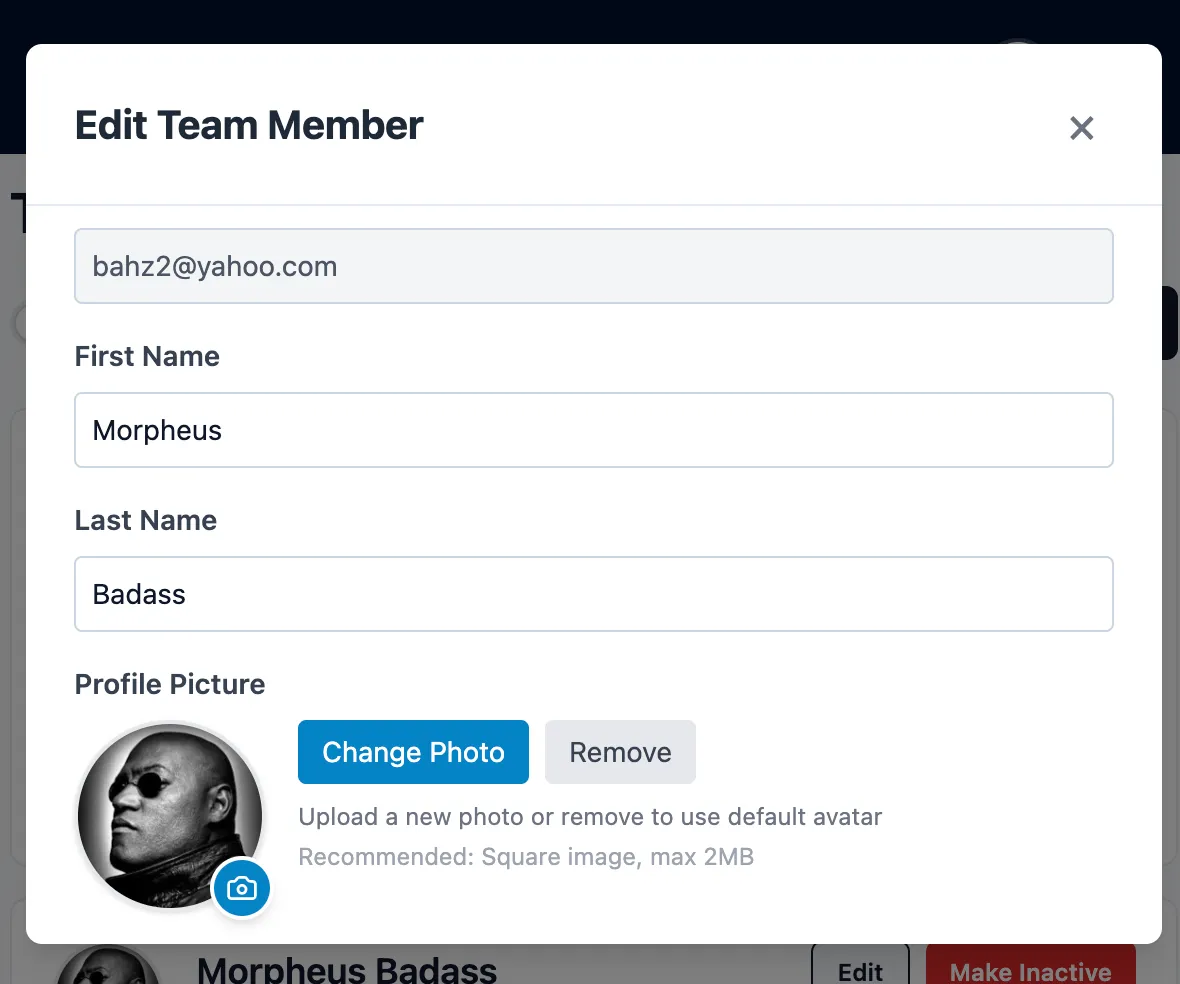
To edit a team member:
- Click their name in the team list
- Edit form opens (modal or side panel)
- Update fields as needed:
- Name - First and last name
- Email - Login email address
- Role - Dropdown to change role
- Trade - Dropdown to change specialty (for technicians)
- Reports To - Dropdown to change manager
- Click Save Changes button
- Success message appears
- List updates with new information
Assessment History (If Available)
When editing a team member, you may see an Assessment History section:
- Look for "Assessment History" heading
- Click to expand/collapse the section
- View past assessment completions:
- Assessment type
- Completion date
- Score (if applicable)
- Click assessment to view details (if clickable)
Direct Reports Section (For Managers)
If the team member is a manager, you may see a Direct Reports section:
- Look for "Direct Reports" heading
- Lists all team members who report to this person
- Shows:
- Direct report names
- Their roles
- Links to their profiles (if clickable)
- Count shows number of direct reports (e.g., "3 direct reports")
Reports To (Manager Assignment)
The "Reports To" field creates a reporting relationship and enables manager access.
How It Works
- In the add/edit form, find the "Reports To" dropdown
- Select a manager from the dropdown (shows all managers/leaders/owners)
- This creates a reporting relationship
- The selected manager can now see this team member's:
- Activity timeline
- Learning progress
- Course completions
- Portal engagement
Helper Text
Below the "Reports To" dropdown, you'll see helper text:
"This person's manager will have access to view their activity."
This explains the permission implications of assigning a manager.
Manager Access Rules
- Managers automatically see activity for anyone who reports to them
- This access cannot be disabled (it's automatic)
- Managers can see:
- Direct reports' KTIs (if enabled in Dashboard Visibility)
- Direct reports' activity timeline
- Direct reports' learning progress
- Direct reports' course completions
- Managers cannot see:
- Other managers' direct reports (unless they also report to them)
- Team members who don't report to them
- Company-wide data (unless granted via Dashboard Visibility)
Cascading Permissions
If Manager A reports to Manager B:
- Manager B can see Manager A's activity
- Manager B can see Manager A's direct reports' activity
- This creates a cascading visibility structure
Account Limits
Your membership level determines how many team member accounts you can have. View your current usage and limit in Settings > Subscription, or compare membership levels at teamspg.com.
Deactivating Accounts
To deactivate a team member:
- Click their name in the list
- Click Deactivate Account
- Confirm the action
Deactivated accounts:
- Cannot log in
- Data is preserved
- Can be reactivated later
- Don't count toward limits
Reactivating Accounts
To reactivate:
- Filter list to show "Inactive"
- Click the deactivated member
- Click Reactivate Account
- They can log in again
Bulk Actions
For multiple team members:
- Check the boxes next to names
- Use the Bulk Actions dropdown
- Select action (Deactivate, Change Role, etc.)
- Confirm
Password Resets
Team members can reset their own passwords. As an owner, you can also:
- Click the team member's name
- Click Reset Password
- They'll receive a reset email
Two-Factor Authentication
For additional security, team members can enable 2FA:
- Go to their own profile
- Enable two-factor authentication
- Scan QR code with authenticator app
Frequently Asked Questions
How many team members can I add?
It depends on your membership level. View your current usage and limit in Settings > Subscription.
What happens when I deactivate someone?
They can no longer log in, their data is preserved, they stop counting toward your seat limit, and you can reactivate them anytime.
Why can't a manager see a team member's data?
Managers only see people who report to them. Check the member's Reports To assignment, and confirm KTI access in Settings > Dashboard Visibility.
Related Topics
- Getting Started - Initial team setup
- Team Activity - Monitor team engagement
- Settings - Configure dashboard visibility
- Roles - FAQ about permissions