
Team SPG Help
How Do I Get Started with Team SPG?
Getting started with Team SPG takes four steps: log in at app.teamspg.com, complete your company profile in Settings, add your team members with their roles, and set default performance goals. Most companies finish initial setup in about half an hour, and your dashboard starts working as soon as KTI data comes in.
Step 1: Log In to Your Account
- Go to app.teamspg.com/login
- Enter your email address and password, or click Continue with Google, Continue with Apple, or Continue with Microsoft
- Click "Sign in"
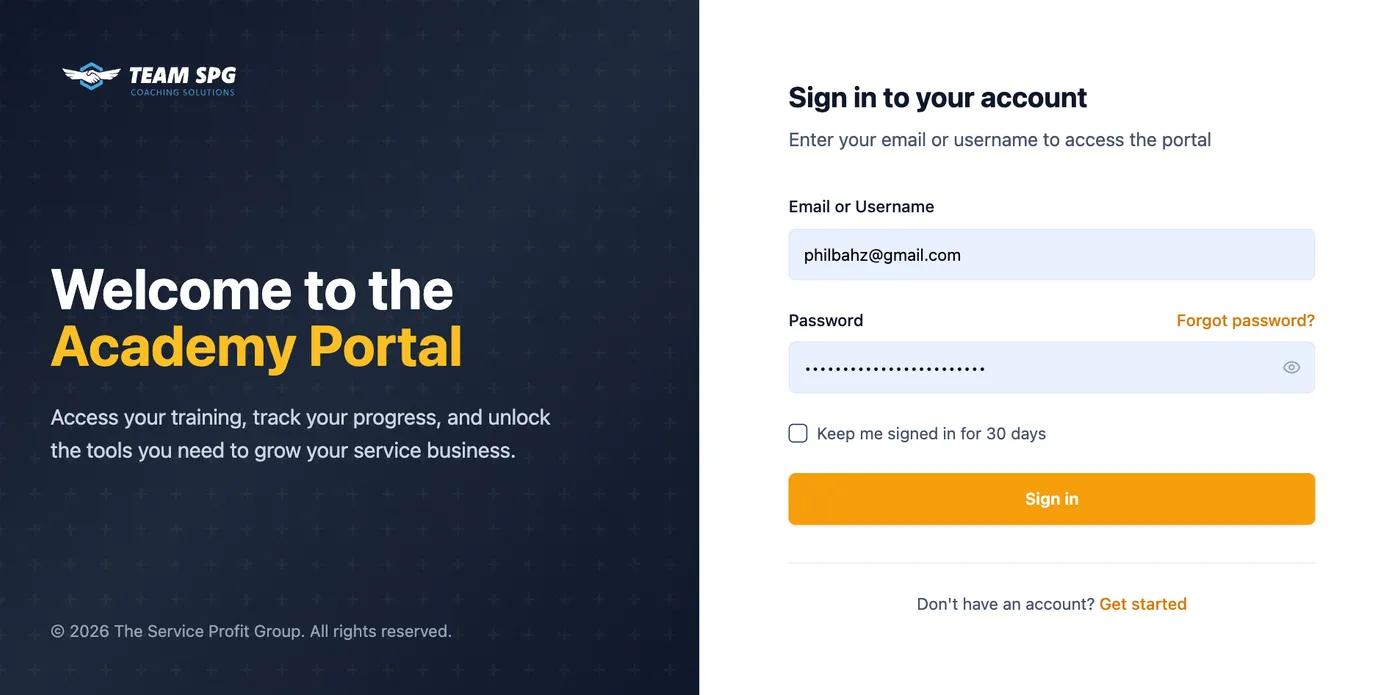
If you've forgotten your password, click "Forgot Password?" to reset it.
Signing in with Google, Apple, or Microsoft
You can use the account you already have with Google, Apple, or Microsoft instead of a password:
- If the email on that account matches your Team SPG email, Google and Apple sign you straight in and connect the account for next time.
- Microsoft asks for your Team SPG password once, then connects the account. After that, one click signs you in.
- If we do not find an account for that email, you land on the free signup page with your name and email already filled in.
You can connect or disconnect these accounts any time under Settings > My Profile > Connected accounts.
Step 2: Complete Your Company Profile
After logging in for the first time:
- Navigate to Settings in the left sidebar
- Fill in your company information:
- Company name
- Address
- Phone number
- Trade specialties
- Click Save Changes
Step 3: Set Up Your Team
Adding Team Members
- Go to Team Accounts in the sidebar
- Click Add Team Member
- Enter their information:
- Name and email
- Role (Technician, CSR, Manager, or Leader)
- Trade specialty (for technicians)
- Who they report to (optional)
- Click Send Invitation
The team member will receive an email with login instructions.
Understanding Roles
| Role | Access Level |
|---|---|
| Owner | Full access to all features and settings |
| Leader | View all team data, manage coaching |
| Manager | View direct reports' data, manage team |
| Technician | View own KTIs and courses |
| CSR | View own metrics and courses |
Step 4: Configure Default Goals
Set performance benchmarks for your team:
- Go to Settings > Goals
- Set default goals by trade:
- Conversion rate
- Average ticket
- Revenue targets
- Maintenance plan goals
- Save your defaults
Individual technicians can have custom goals that override these defaults.
Step 5: Explore the Dashboard
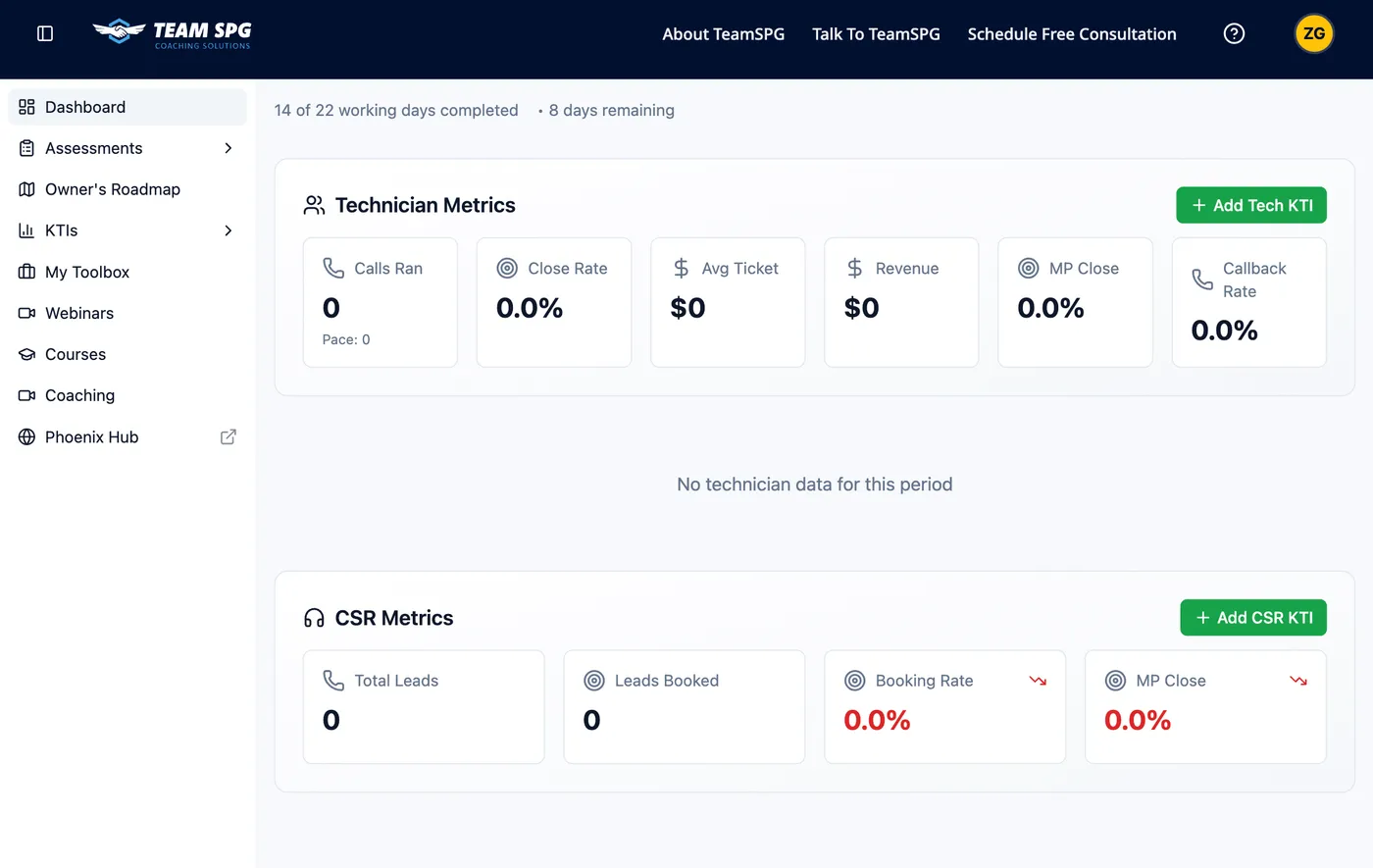
Your dashboard shows:
- Working Days Progress - Days completed vs. remaining in the month
- Technician Metrics Cards - Six key performance indicators
- CSR Metrics Cards - Three key performance indicators
- By Technician Table - Individual technician breakdown
- By CSR Table - Individual CSR breakdown
Quick Tips
- Hover over metric cards to see goals, pace, and comparisons
- Click column headers in tables to sort by that metric
- Use the date period dropdown to view different time ranges
- Click refresh button to reload the latest data
See the Dashboard Guide for detailed information.
What's Next?
Now that you're set up, explore these features:
- Understanding Your Dashboard - Deep dive into your metrics
- KTI Tracking - How to track and improve performance
- Team Activity - Monitor your team's engagement
- Courses & Learning - Start your team on their learning journey
Frequently Asked Questions
Do I need to install anything to use Team SPG?
No. Team SPG runs entirely in your web browser at app.teamspg.com — there's nothing to install. It works on desktop, tablet, and phone.
Who should I add to my team first?
Start with your technicians and CSRs so KTI tracking has people to measure, then add managers and leaders. Every member gets their own login and sees only what their role allows.
What should I set up before my team logs in?
Complete your company profile and default goals first. That way dashboards show meaningful goal comparisons from your team's very first login.
Can my team sign in with Google, Apple, or Microsoft?
Yes. Every team member can click a "Continue with" button on the login page. As long as the email on their Google, Apple, or Microsoft account matches the email you invited them with, it connects to their Team SPG login. Microsoft users are asked for their Team SPG password one time first.
Need Help?
If you run into any issues during setup:
- Email: support@teamspg.com
- Phone: (941) 477-6348
- Contact Form: teamspg.com/contact-us
- Check our FAQ for quick answers