
Team SPG Help
How Do I Configure Company Settings in Team SPG?
Company Settings controls how Team SPG works for your whole team: your company profile and logo, which days count as working days, what each role can see on the dashboard, default performance goals, notifications, and integrations. Only Owners and Co-Owners can access all settings, and changes take effect immediately after saving.
Accessing Settings
- Click Settings in the left sidebar
- Choose a settings category
- Make your changes
- Click Save
Only Owners and Co-Owners can access all settings.
Company Information
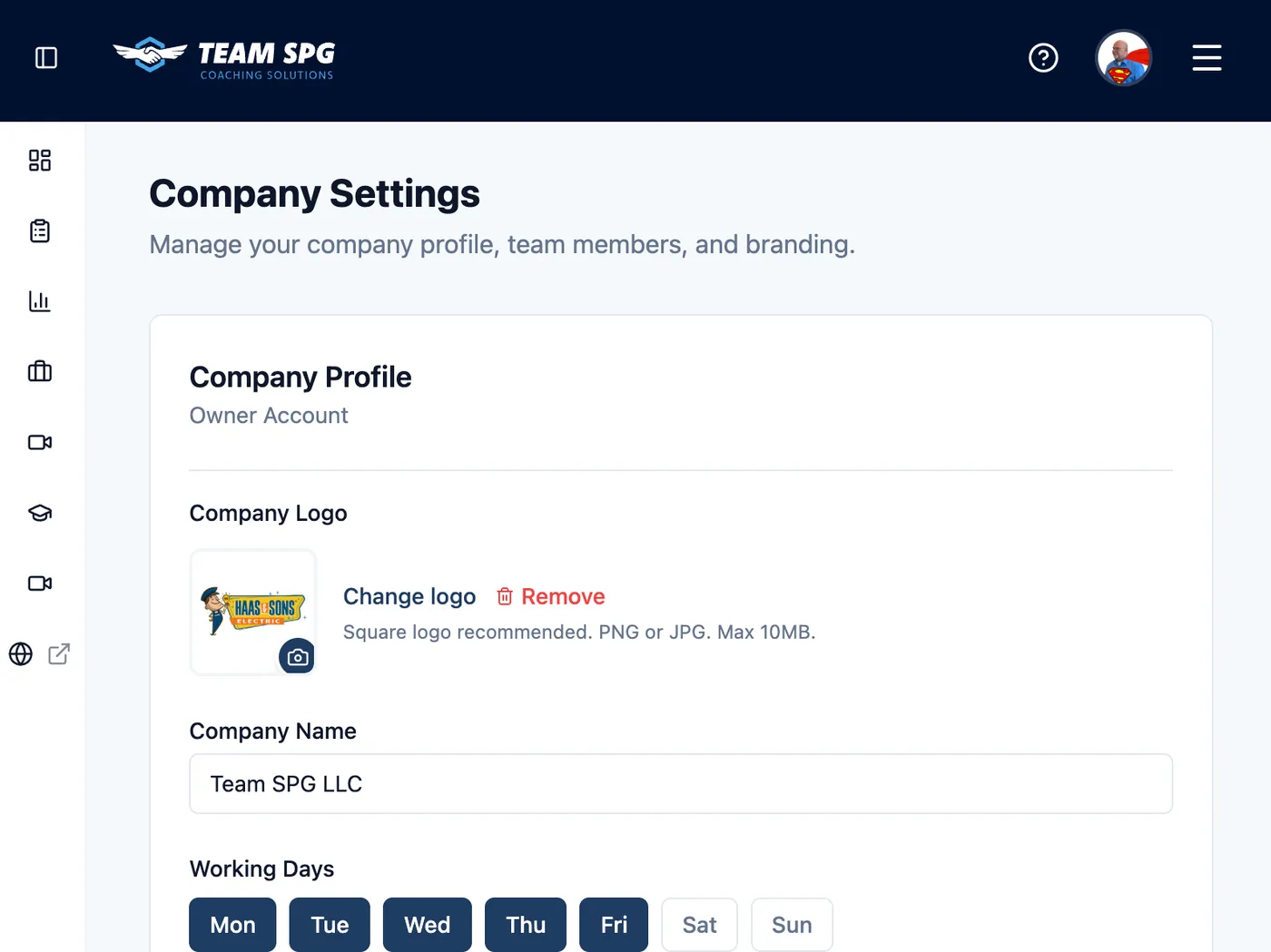
Basic company details are configured in the Company Info tab.
Company Details Form
| Field | Description | Required |
|---|---|---|
| Company Name | Your business name | Yes |
| Address | Business address (street, city, state, zip) | Optional |
| Phone | Main phone number | Optional |
| Website | Your company website URL | Optional |
| Logo | Company logo for reports and branding | Optional |
Logo Upload
To add or change your company logo:
- Click Upload Logo button (or Change Logo if one exists)
- File picker opens
- Select an image file (JPG, PNG, recommended size: 200x200px or larger)
- Image uploads and displays preview
- Click Remove Logo to delete the current logo
- Logo appears in reports and company branding
Working Days Selection
Configure which days of the week count as working days:
- Find the "Working Days" section
- Click day buttons to toggle:
- Monday - Click to enable/disable
- Tuesday - Click to enable/disable
- Wednesday - Click to enable/disable
- Thursday - Click to enable/disable
- Friday - Click to enable/disable
- Saturday - Click to enable/disable
- Sunday - Click to enable/disable
- Enabled days appear highlighted/selected
- Disabled days appear grayed out
- Working days affect dashboard "working days completed" calculation
Saving Changes
- Make your changes to any fields
- Save button appears or becomes enabled when changes are detected
- Click Save or Save Changes button
- Success message appears confirming save
- Changes take effect immediately
Dashboard Visibility
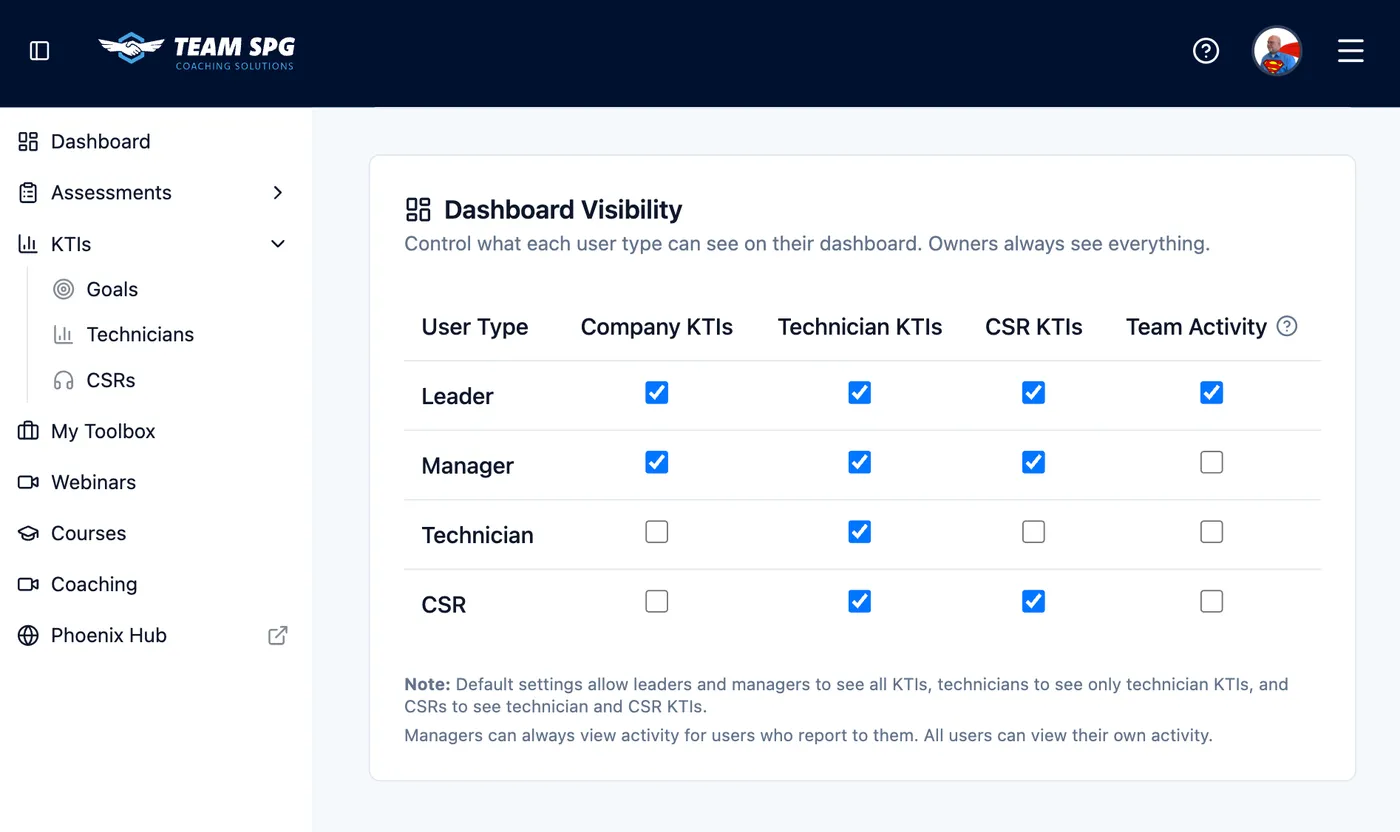
Control what each role can see on their dashboard.
Configuration Table
The visibility table shows:
- Rows = User roles (Leader, Manager, Technician, CSR)
- Columns = Features/metrics
- Checkmarks = Visible to that role
Available Settings
| Setting | Description |
|---|---|
| Company KTIs | Aggregate company metrics |
| Individual KTIs | Their own performance |
| Team KTIs | View other team members' data |
| Goals | Goal progress and targets |
| Budget | Financial information |
| Scorecard | Performance scorecard |
| Documents | Company document library |
| Team Activity | Access to all team activity |
Team Activity Permission
The Team Activity column is special and has a tooltip:
- Hover over the column header - Tooltip explains: "Access to all team members' activity timeline and learning progress. Managers automatically see their direct reports regardless of this setting."
- Checked = Full access to all team members' activity (beyond direct reports)
- Unchecked = Limited to own activity (or direct reports for managers)
Important Notes:
- Managers can always see their direct reports' activity regardless of this setting
- All users can always see their own activity
- Owners always have full access (cannot be restricted)
- This setting primarily affects Leaders who want broader team visibility
How to Configure
- Go to Settings > Dashboard Visibility tab
- Find the Team Activity column (rightmost column)
- Check/uncheck boxes for each role:
- Check = Grant full team activity access
- Uncheck = Limit to own/direct reports only
- Hover over column header to see tooltip explanation
- Click Save Changes button
- Changes take effect immediately on next page load
Note at Bottom of Table
Below the visibility table, you'll see a note:
"Managers can always view activity for users who report to them."
This clarifies that manager permissions are automatic based on reporting structure.
How to Configure
- Go to Settings > Dashboard Visibility
- Check/uncheck boxes for each role
- Click Save Changes
Changes take effect immediately on next page load.
Feature Access
Some features are enabled based on:
- Membership level
- Company configuration
- Feature flags
View enabled features:
- Go to Settings > Features
- See which features are active
- Contact support to enable more
Integrations
Available Integrations
| Integration | Purpose |
|---|---|
| ServiceTitan | Import KTI data |
| FieldEdge | Sync technician data |
| Housecall Pro | Performance metrics |
| QuickBooks | Financial data |
Setting Up Integrations
- Go to Settings > Integrations
- Click the integration you want
- Follow the authorization flow
- Configure sync settings
Notification Settings
Configure email notifications:
| Notification | When Sent |
|---|---|
| New User Welcome | When team members are added |
| Coaching Reminders | Before scheduled sessions |
| Course Assignments | When courses are assigned |
| Weekly Reports | Weekly performance summary |
Managing Notifications
- Go to Settings > Notifications
- Toggle notifications on/off
- Set email preferences
- Save changes
Subscription & Billing
View your subscription:
- Current plan level
- Team member count/limit
- Next billing date
- Payment method
To upgrade:
- Go to Settings > Subscription
- Click Upgrade Plan
- Select new level
- Complete payment
Data Export
Export your data:
- Go to Settings > Data
- Choose what to export:
- KTI history
- Team roster
- Course progress
- Select format (CSV, Excel)
- Download
Security Settings
Password Policy
Set minimum requirements:
- Minimum length
- Character requirements
- Expiration period
Session Timeout
Configure auto-logout:
- 15 minutes (high security)
- 1 hour (standard)
- 8 hours (convenience)
Connected Accounts (Google, Apple, Microsoft)
Every user can connect a Google, Apple, or Microsoft account to their own Team SPG login so they can sign in with one click. This is personal to each user and lives under My Profile, not company settings.
Until you connect an account, a New: sign in with Google, Apple, or Microsoft strip appears at the top of the portal. Click Connect your account to jump to the Connected accounts card, or the X to hide the strip on this browser. It also goes away on its own once you connect an account.
Connecting an Account
- Go to Settings > My Profile (or click Connect your account in the strip at the top of the page)
- Find the Connected accounts card
- Click Connect next to Google, Apple, or Microsoft
- Sign in with that provider when it asks
- You return to My Profile with the account marked as connected
From then on, the Continue with button on the login page signs you in.
Disconnecting an Account
- Go to Settings > My Profile > Connected accounts
- Click Disconnect next to the provider
- Confirm
After disconnecting you sign in with your Team SPG password. If you never set one, use Forgot password? on the login page to create one.
Dark Mode (Theme)
Every signed-in user can pick a light or dark look for the portal. The portal starts in the light look. The first time dark mode is available you will see a one-time New: Dark Mode strip at the top of the page; click Try it now to switch, or the X to keep the light look. The choice is personal to you and saved in your browser, so it does not change what your teammates see. On a shared computer the browser keeps the last choice made on it, so a teammate who signs in after you will see the same look until they pick their own.
Switching Themes
- Click your profile picture in the top-right corner
- Under Theme, choose one:
- Light - White backgrounds (the default look)
- Dark - Navy backgrounds with light text
- System - Follows your computer or phone's own light/dark setting
- The portal switches right away; a checkmark shows the active choice
The login page and other public pages always use the light look. Printed pages always print light, even when dark mode is on.
Frequently Asked Questions
Who can change company settings?
Only Owners and Co-Owners have full settings access. Other roles see only the settings their permissions allow.
What is Dashboard Visibility?
A per-role grid that controls what Leaders, Managers, Technicians, and CSRs see — company KTIs, team KTIs, goals, budget, scorecard, documents, and team activity. Owners are never restricted.
Do default goals override individual goals?
No — it's the reverse. Company defaults apply to everyone in a trade until you set individual goals, which take precedence for that person.
Why does Microsoft ask for my password before connecting?
Google and Apple confirm that you own the email on your account, so a matching email connects right away. Microsoft does not confirm that, so Team SPG asks for your password one time to make sure the account is yours. After that, Microsoft sign-in is one click.
Can I disconnect a Google, Apple, or Microsoft account?
Yes. Go to Settings > My Profile > Connected accounts and click Disconnect. You will then sign in with your Team SPG password. If you never set one, use Forgot password? on the login page.
How do I turn on dark mode?
Click Try it now on the one-time New: Dark Mode strip, or click your profile picture in the top-right corner and pick Dark under Theme. Choose System to follow your device's own setting, or Light to go back. The choice is saved in your browser and applies only to you.
Related Topics
- Team Accounts - Manage team access
- KTIs - Performance tracking
- Dashboard - Using the dashboard
- Getting Started - Initial setup