
Team SPG Help
How Do I Put the Technician Leaderboard on a TV in Team SPG?
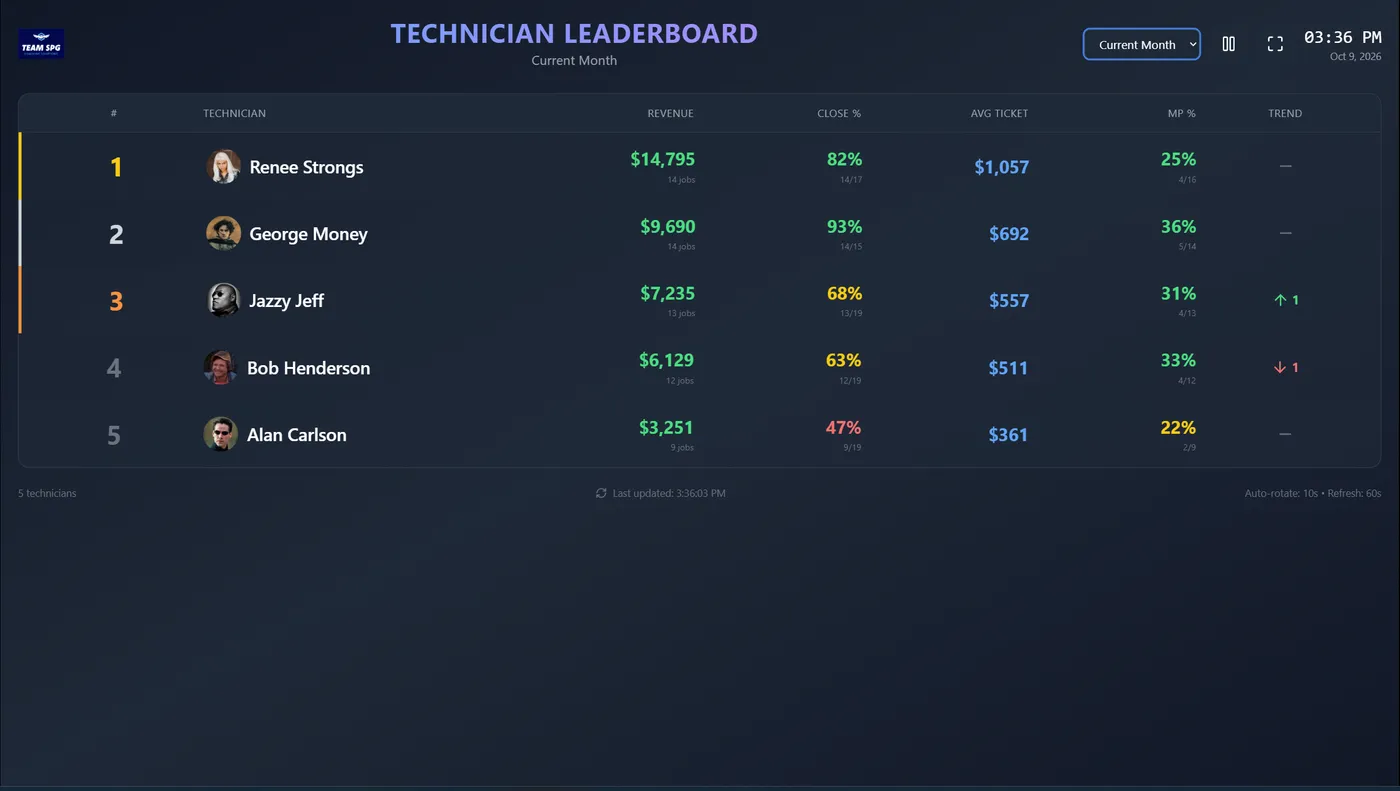
Open app.teamspg.com/tv in the browser on any smart TV or a computer plugged into a TV. The screen shows a six-character code. In the portal, go to Settings > Company > TV Displays, click Pair New TV, and type the code. The TV switches to a live leaderboard that ranks your technicians by revenue and refreshes itself every minute.
What You Need
- A TV with a web browser (most smart TVs have one), or any laptop, Chromebox, or streaming stick with a browser connected to the TV
- Wi-Fi at the shop
- An Owner or Co-Owner login to the portal (only those roles can pair a TV)
- Technician KTIs entered for the current period. The board ranks whatever is in KTIs.
Pairing a TV
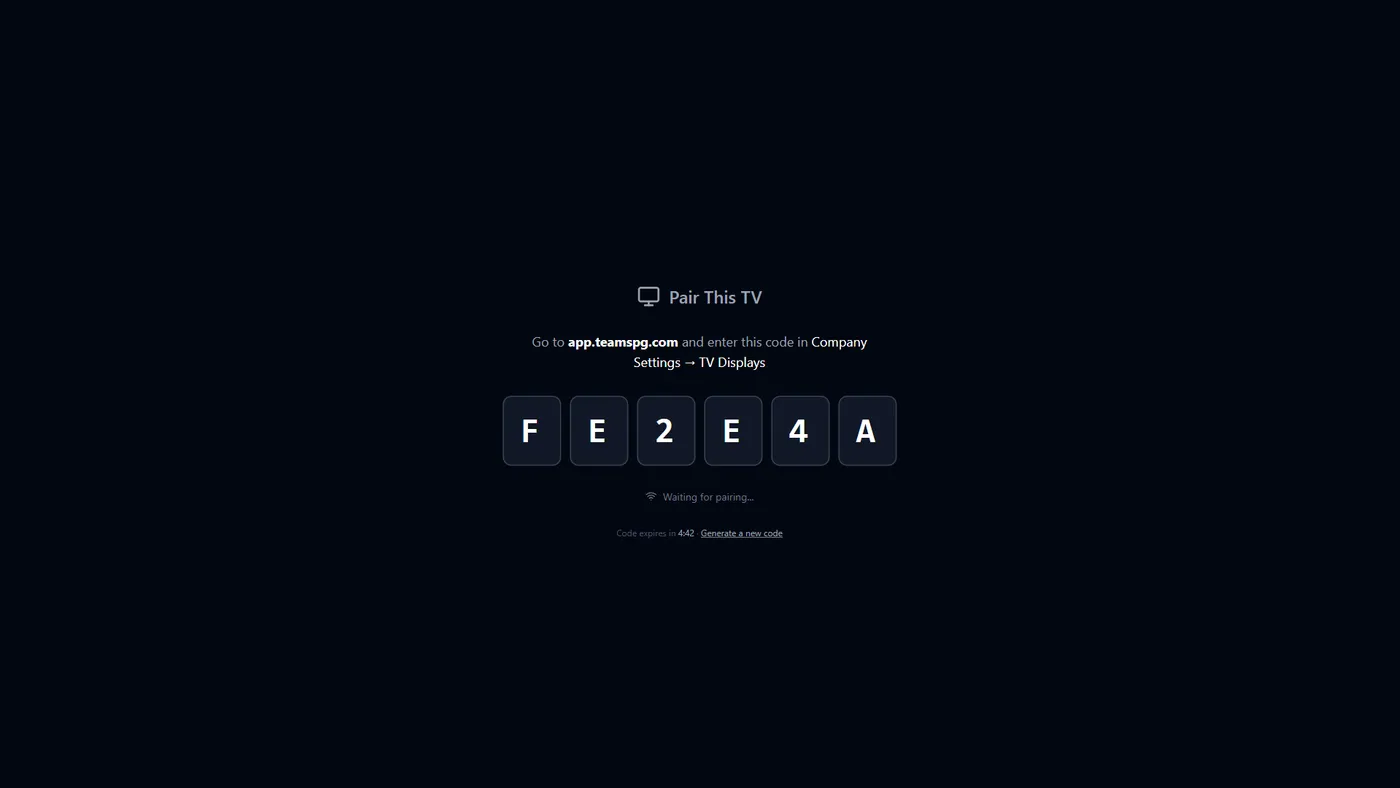
- On the TV, open the browser and go to app.teamspg.com/tv.
- The TV shows a six-character pairing code. The code is good for five minutes. If it runs out, click Generate a new code on the TV.
- On your phone or computer, log in to the portal and go to Settings > Company.
- Scroll to TV Displays and click Pair New TV.
- Type the code from the TV. Give the TV a name, such as "Break Room" or "Dispatch", so you can tell them apart later.
- Click Pair. Within a few seconds the TV switches from the code to the leaderboard.
The TV remembers the pairing. If the TV restarts or loses power, open app.teamspg.com/tv again and it goes straight back to the board.
You can pair as many TVs as you want. Each one shows up in the TV Displays list with an online dot and a "last seen" time.
Reading the Board
The board ranks technicians by revenue for the period shown in the top right. Each row shows:
| Column | What it means |
|---|---|
| # | Rank by revenue. First place is gold, second is silver, third is bronze. |
| Technician | Name and profile photo from Team Accounts. |
| Revenue | Total sales for the period. The small number under it is jobs sold. |
| Close % | Calls sold divided by calls ran. The small number is sold/ran. |
| Avg Ticket | Revenue divided by jobs sold. |
| MP % | Maintenance plans sold divided by maintenance plan opportunities. |
| Trend | A green up arrow or red down arrow with how many places the tech moved since the previous period. A dash means no change. NEW means the tech was not on the board last period. |
Close % and MP % change color from green to yellow to red as the number drops. The exact goals your company uses for green and red on the KTIs page are set under KTIs > Goals.
Changing the Period
The dropdown in the top right of the TV switches the period:
- Current Month (the default)
- Last Month
- Year to Date
- Last 30 Days
The Trend column compares against the period before the one you pick. For Current Month it compares against last month. For Year to Date it compares against the same period last year.
You change the period with the TV's remote or a connected mouse. The choice stays until someone changes it again or the page reloads.
Rotation, Refresh, and Fullscreen
- Five techs per page. If you have more than five technicians, the board rotates to the next page every 10 seconds. Dots at the bottom show which page is up.
- Trades rotate too. If your techs are in more than one trade, each trade gets its own pages with a trade header.
- Pause. The pause button in the top right stops the rotation so you can hold one page during a meeting. Press it again to resume.
- Refresh. The board pulls new numbers every 60 seconds. The time of the last refresh is in the footer. A KTI entered on a phone shows on the TV within a minute.
- Fullscreen. The expand button hides the browser's address bar. On most smart TVs the browser is already full screen.
Managing Paired TVs
Go to Settings > Company > TV Displays to see every TV paired to your company.
- Online dot. Green means the TV has checked in during the last two minutes.
- Rename. Open the menu on the right of a TV and choose Rename.
- Revoke. Open the menu and choose Revoke to disconnect a TV. The TV shows a "Device Disconnected" message and a Re-pair button. Revoke a TV if it leaves the shop or if you want to start over.
Tips From Coaches
- Put it where techs gather. The break room or the dispatch board works better than the owner's office. The point is that techs see it every day without being told to look.
- Enter KTIs daily. A board that lags a week behind loses its pull. One entry per tech per day from the Add KTI form keeps it current.
- Talk about the bottom of the board in private. Use the board to celebrate the top. Use one-on-ones and training to help the bottom. A tech who is shamed in front of the room stops entering numbers.
- Set the goals first. Green and red mean nothing until the targets under KTIs > Goals match what you expect from your team.
Frequently Asked Questions
Does the TV Leaderboard work on any TV?
It works on any TV that can open a web page. That includes most smart TVs, plus any laptop, Chromebox, Fire Stick, or Roku with a browser plugged into an HDMI port. If the TV cannot open app.teamspg.com, a cheap streaming stick with a browser fixes it.
Does the TV need a login?
No. The TV is paired with a code, not a user account. It only sees the leaderboard for your company. Revoke the pairing from Settings at any time to cut it off.
Why does a technician show NEW instead of an arrow?
NEW means the tech had no ranked KTIs in the previous period, so there is nothing to compare against. After one full period the arrow replaces it.
Can the board show CSRs too?
Not today. The TV Leaderboard ranks technicians only. CSR booking and maintenance plan numbers are on the CSR KTIs page in the portal.
Related Topics
- KTI Tracking - Enter the numbers the board ranks and set the goals behind the colors
- Dashboard - The owner's view of the same numbers
- Company Settings - Where paired TVs are managed